
Anker Laptop Docking Station Dual Monitor
4.5Editor score
Eight-in-one port selection
Dual 4K HDMI support
Up to 85W pass-through charging
Explore the best docking station for Dell laptop options, comparing ports, charging, displays, data speeds, compatibility, and setup for modern workspaces.
A docking station can transform a Dell laptop from a compact daily computer into a practical desktop workstation. The right model adds display outputs, wired networking, faster USB connections, audio support, and a cleaner way to charge your computer through one upstream cable.
The products in this guide were compared by examining their monitor support, power delivery, port selection, data speeds, network features, and stated compatibility with Dell systems. The list includes purpose-built Dell docks as well as broader USB-C and Thunderbolt-compatible models from Anker and other manufacturers.
Each review identifies the strongest feature of its dock and the circumstances in which it makes the most sense. Ratings reflect the supplied product information, while technical limits, included accessories, and operating-system caveats help distinguish otherwise similar models. Prices and availability change frequently.
4.5Editor score

4.5Editor score

4.3Editor score
This side-by-side overview compares all ten docks by their practical workstation features, including display flexibility, charging capacity, port count, and important compatibility limitations.




The Dell Pro Laptop Docking Station WD25 is the most straightforward choice for a Dell user who wants a dock designed around modern commercial laptops. Its 4.5 rating reflects a strong balance of charging, display expansion, connectivity, and manageability. The most prominent specifications are up to 100W power delivery and native support for as many as four high-resolution displays.
We may earn a commission when you buy through this link, at no additional cost to you.
Its appeal comes from the combination of a robust USB-C connection, DisplayPort and HDMI outputs, and a cable that can be routed from either side of the dock. That physical flexibility can simplify desk arrangements where the laptop sits to the left or right of the monitors. The dock also supports faster USB and network connections, making it suitable for a permanent workstation rather than occasional travel use.
Dell also emphasizes IT manageability and reduced standby power consumption, while the enclosure uses at least 65% postconsumer recycled materials and ships with recycled or renewable packaging. The main caveat is that the exact number and resolution of external displays ultimately depend on the Dell model, its USB-C capabilities, and the connected screens. Buyers should therefore verify their laptop's specifications rather than assuming every configuration reaches four displays.
This is the best overall recommendation for Dell Pro and compatible mainstream Dell AI PC users, as well as compatible non-Dell PCs. It is particularly attractive to offices that value a current commercial dock, flexible cable placement, and strong charging. For a home user, its specialized management and sustainability features are less visible, but they do not diminish its strong all-around performance.
Native support for up to four high-resolution displays makes the WD25 relevant to analysts, designers, and office professionals who divide work across several screens. The exact resolution and refresh rate vary by output, laptop, and monitor, so checking the display specifications for your particular Dell computer remains essential.
The ambidextrous USB-C cable can be routed left or right, reducing cable strain and making the dock easier to position. Its robust USB-C connector is also intended to withstand regular connection and disconnection in a busy workspace.
We may earn a commission when you buy through this link, at no additional cost to you.
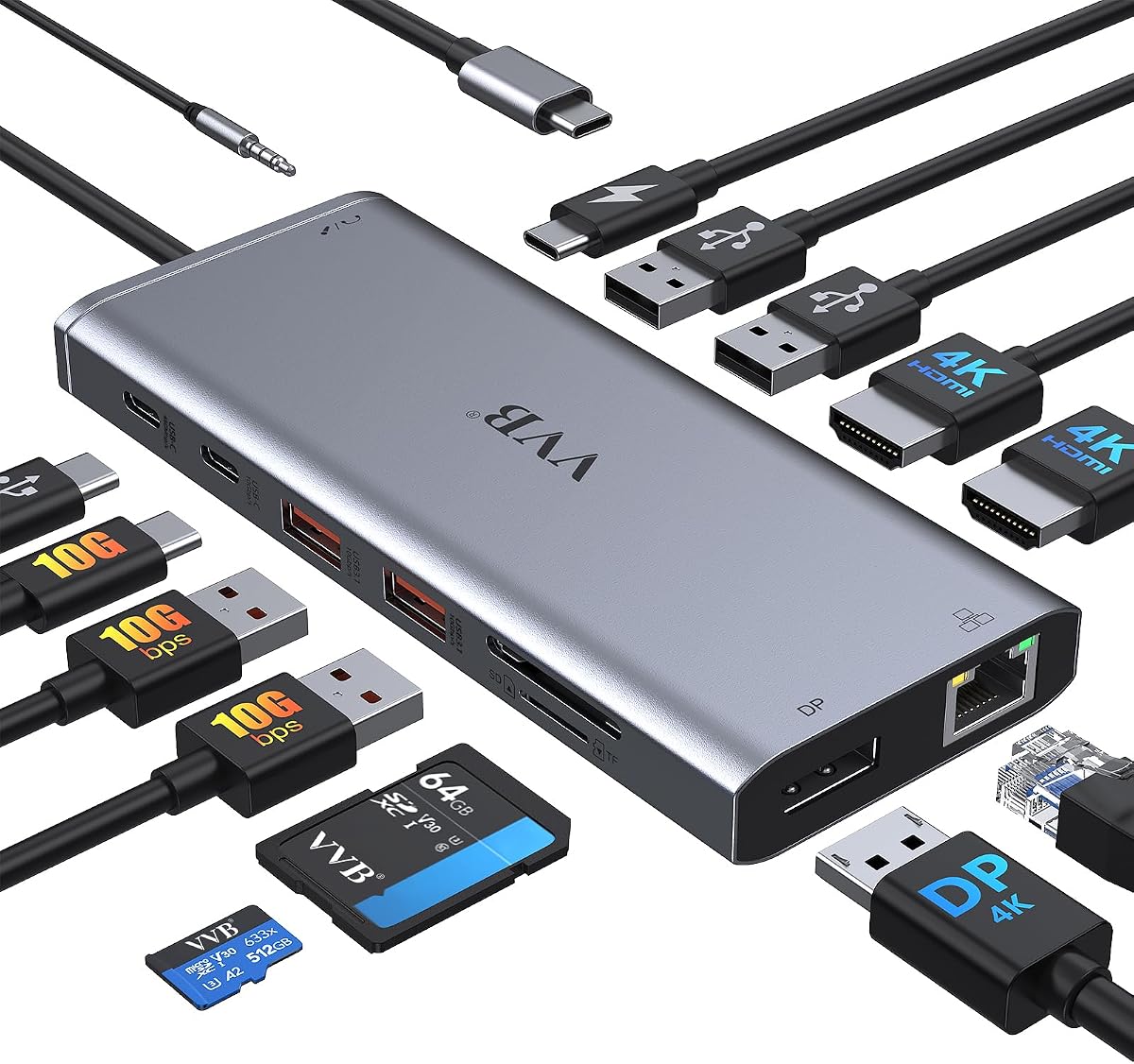
The Anker Laptop Docking Station Dual Monitor is a cost-conscious way to create a more permanent desk setup around a compatible Dell laptop. It carries a 4.5 rating and combines eight functions in one enclosure: USB-C Power Delivery, two USB-A data ports, two HDMI outputs, Ethernet, and an SD/microSD card reader.
We may earn a commission when you buy through this link, at no additional cost to you.
The dock can stream or mirror one display at 4K60Hz, while two connected displays can each run at up to 4K30Hz. That makes it a capable option for a two-monitor office arrangement without requiring a more complex multi-screen system. USB-C Power Delivery provides pass-through charging up to 85W, and Gigabit Ethernet supplies a dependable wired-network option.
Its important limitation is that the wall charger and USB-C-to-C cable are not included. A compatible 100W PD wall charger and suitable cable are called for in the supplied instructions. In addition, macOS uses an identical image on both external monitors, and the product is not compatible with Linux. These limitations matter less for a compatible Windows Dell laptop but should be understood before purchase.
This is the best budget-oriented recommendation for users who need two screens, wired internet, card reading, and basic USB expansion. It is especially useful for a home or hybrid office where a more elaborate commercial dock would add unnecessary cost or size. Confirm that the Dell laptop supports DisplayPort Alternate Mode and USB-C Power Delivery before ordering.
One display can operate at 4K60Hz, while a two-display setup supports up to 4K30Hz per screen. That resolution is well suited to document work, web applications, communication software, and general productivity, provided the laptop's USB-C port can output the required signals.
Two USB-A ports, Gigabit Ethernet, and an SD/microSD reader cover common desk accessories without requiring separate adapters. The compact eight-port design is easier to integrate than a full-size enterprise docking station.
We may earn a commission when you buy through this link, at no additional cost to you.
The Anker Prime Docking Station is the feature-rich premium choice in this guide, offering 14 connections and up to 160W of aggregate output. Its 4.3 rating reflects a particularly ambitious charging design: three USB-C ports can deliver as much as 100W each, while one USB-A port can provide up to 12W.
We may earn a commission when you buy through this link, at no additional cost to you.
This power capacity is useful when the dock serves several connected devices rather than only a laptop. It also supports data transfers at up to 10Gbps and provides dual 4K-capable display connections. With a DisplayPort 1.4 laptop, the two HDMI outputs can support displays at up to 2K60Hz; a DisplayPort 1.2 system is limited to 1080p60Hz for the dual-display arrangement.
The major trade-off is display flexibility. Although it is a substantial dock, it does not support a 5120×1440 monitor, and its two-screen configuration does not reach the 4K60Hz-per-display capability offered by some alternatives. macOS also mirrors identical content on both external displays, while Linux is unsupported. These are meaningful constraints for buyers with demanding or unusual monitor requirements.
This dock is best for a compatible Dell laptop user who wants extensive ports and exceptional multi-device charging in a premium package. It includes a three-foot 100W, 10Gbps USB-C upstream cable, making the core connection easier to get started. Choose it when charging flexibility and data speed outweigh the need for higher dual-monitor resolution.
The 160W total output can charge several attached devices, including a laptop and other USB-C or USB-A equipment. This separates the Prime from simpler docks that reserve most of their available power for the host computer.
Ports supporting speeds up to 10Gbps suit fast external storage, flash drives, and other demanding peripherals. The supplied upstream cable also supports 100W power and 10Gbps data, helping preserve the dock's full connection capability.
We may earn a commission when you buy through this link, at no additional cost to you.
The HoDo USB-C 8-in-1 Dock stands out for its unusually broad selection of video outputs: two HDMI connections, one DisplayPort, and one VGA port. It holds a 4.3 rating and can deliver up to 100W of input with safe laptop output stated at 87W, making it a capable multi-monitor option for a compatible Dell notebook.
We may earn a commission when you buy through this link, at no additional cost to you.
A single HDMI or DisplayPort output can reach 4K60Hz, while the second HDMI output reaches 4K30Hz. For dual-display use, the dock supports a 4K30Hz and 1080p60Hz combination when the laptop supports DisplayPort 1.4. Three displays are possible, but the available modes become less demanding. Connecting VGA affects all displays and limits their resolution to 1080p.
The three USB 2.0 ports provide up to 480Mbps and are suitable for keyboards, mice, and flash drives, but they are not intended for the fastest external storage workloads. A suitable 65W-or-higher adapter is also required for charging, although the adapter and power cord are not included. macOS users should expect identical images across external displays.
This model is a good fit for a Windows-based Dell laptop that has full-featured USB-C with DisplayPort Alternate Mode and needs several possible display arrangements. It is less suitable for newer Dell systems whose USB-C ports lack video output, including the specific Dell models identified in the supplied compatibility information. Always check the laptop's port capabilities first.
HDMI, DisplayPort, and VGA allow the dock to serve different generations of equipment. VGA is useful for an older display, although using it can reduce the resolution available across the entire multi-screen arrangement.
The dock accepts up to 100W input and supplies a stated safe output of 87W. Because the required charger is not included, buyers should use a 65W-or-higher compatible power adapter to avoid system warnings.
We may earn a commission when you buy through this link, at no additional cost to you.
The Anker Nano 13-in-1 combines a desktop docking station with a detachable six-in-one portable hub. Its 4.2 rating reflects a distinctive design for users who divide time between a fixed desk and mobile work. The removable section lets the user carry selected USB-C, USB-A, display, or card-reader functionality without bringing the full dock.
We may earn a commission when you buy through this link, at no additional cost to you.
The main dock supports up to three monitors: one display at 4K60Hz, two at 2K60Hz, or three at 1080p60Hz. It also includes Gigabit Ethernet, a 3.5mm audio connection, SD and TF card slots, three USB-A ports, and two USB-C data ports rated at 5Gbps and 10Gbps. Host charging reaches 100W, and the package includes a 140W power adapter.
The detachable component is the main trade-off because the dock is a more complex product than a straightforward fixed hub. macOS is limited to mirrored output across multiple external displays. The dock's ports and blue light strip only activate when a laptop is connected through the upstream USB-C port, so it should not be expected to operate as a standalone USB hub.
This is a strong choice for a compatible Dell XPS, ThinkPad, or other modern Windows USB-C laptop that moves between home, office, and travel. It works particularly well for users who want a full desk setup without maintaining a separate travel adapter. The included upstream cable and 140W adapter make the initial setup more complete than many competing docks.
The detachable six-in-one hub can be separated from the full dock and taken to a meeting room or temporary workspace. It expands the value of the product for hybrid workers who would otherwise carry several small adapters.
The included 140W power adapter is designed to support the dock under full load. A dedicated 10Gbps USB-C data port also provides a faster path for large file transfers and compatible storage.
We may earn a commission when you buy through this link, at no additional cost to you.
The USB C Laptop Docking Station Dual Monitor HDMI USB C Hub Multiport Adapter is a general-purpose 14-port option with a strong range of connections. Its 4.3 rating reflects a capable mix of dual and triple displays, fast USB data, 100W input, and an 87W safe laptop output.
We may earn a commission when you buy through this link, at no additional cost to you.
The dock includes two HDMI ports, DisplayPort, Gigabit Ethernet, a 3.5mm microphone and audio connection, an SD/microSD reader, three USB-A 2.0 ports, one USB-C 2.0 port, one USB-C 3.1 port, and two USB-A 3.1 ports. The newest USB connections support data speeds up to 10Gbps, while the older USB 2.0 connections are intended for slower devices.
Display performance depends on the selected outputs. One HDMI or DisplayPort connection can reach 4K60Hz, while the second HDMI reaches 4K30Hz. A dual-screen arrangement is listed as 4K30Hz and 1080p60Hz, and three screens operate at 1080p. MacBook systems are limited to the same image on external monitors, and a converter is not supported for adding displays.
This dock is well suited to a compatible Dell Latitude, Inspiron, Vostro, or XPS system that needs a broad assortment of connections. The supplied information names numerous compatible examples, but USB-C video capability remains essential. The charging cable and adapter are not included, and the laptop's USB-C port must support Power Delivery for charging to work as intended.
Two USB-A 3.1 ports and one USB-C 3.1 port support speeds up to 10Gbps. Separate USB 2.0 connections remain available for keyboards, mice, and other peripherals where maximum transfer speed is unnecessary.
The stated compatibility list covers several Dell Latitude, Inspiron, Vostro, and XPS models, along with systems from HP, Lenovo, and Microsoft. The common requirement is a full-featured USB-C connection supporting video output and Power Delivery.
We may earn a commission when you buy through this link, at no additional cost to you.
The Dell WD19S 180W is a traditional commercial Dell docking station built around a USB-C interface, DisplayPort, and HDMI. It has a 3.8 rating and is especially relevant to organizations already using Dell business laptops that support compatible WD-series docking. Its 180W power adapter and 130W power delivery are its most prominent specifications.
We may earn a commission when you buy through this link, at no additional cost to you.
Dell describes the WD19S as designed for the future, with the emphasis on powering connected devices and optimizing a professional workspace. The native DisplayPort connections are valuable for Dell users who already use compatible Dell monitors, while the USB-C interface supports a consolidated connection to the laptop and charging through the dock.
The supplied information is less detailed than for several newer docks in this roundup, so buyers should verify the exact port inventory, supported display resolutions, and current compatibility before purchase. The product's 3.8 rating is also the lowest among the ten selections, so its business focus should be weighed carefully against newer models with clearer specifications and higher ratings.
This dock is most convincing for an enterprise or office environment standardized around Dell equipment, particularly if an existing 130W Dell charging workflow is already known to work. It is less attractive for a buyer who wants the most compact design, detailed multi-monitor specifications, or a broad third-party platform support statement.
The WD19S name and native DisplayPort arrangement align naturally with Dell monitor and business-laptop deployments. This makes it a practical option for standardized corporate equipment rather than only a general desktop accessory.
The included 180W adapter provides headroom for the dock's charging system and attached devices, while the stated 130W laptop power delivery is designed for demanding business notebooks.
We may earn a commission when you buy through this link, at no additional cost to you.
The Anker Laptop Docking Station 13-in-1 is designed for users who want a three-screen workspace from a single USB-C connection. It has a 4.0 rating and provides 13 ports across video, data, network, audio, and card-reading functions. Its vertical form measures 4.9 by 3.5 by 1.6 inches, helping preserve desk space.
We may earn a commission when you buy through this link, at no additional cost to you.
Two HDMI connections and one DisplayPort support up to three external monitors at 1080p60Hz. A single display can instead run at 4K60Hz through HDMI or DisplayPort. Host charging reaches 85W, while a dedicated 18W USB-C port can charge a phone. A 135W power adapter is included, along with support for data transfers at up to 10Gbps and SD card reads at 104 MB/s.
The most important limitation is resolution when all three screens are active. Users accustomed to 4K or 2K output may find 1080p on each monitor less suitable for dense documents, image editing, or other detailed work. Extended triple-display operation is stated for Windows 10, Windows 11, and ChromeOS with MST; macOS limits external monitors to mirrored output.
This is a good fit for a compatible Dell laptop that needs three 1080p screens, a wired network, card access, and a relatively compact desktop footprint. It is less suitable when a single ultrawide monitor, multiple 4K screens, or Apple extended desktop support is the priority.
The three independent video outputs can divide email, messaging, documents, and reference material across separate screens. Windows and ChromeOS users with the required MST support can use the dock in an extended arrangement.
The upright enclosure occupies a relatively small footprint for a 13-port dock. It also includes a 135W adapter, removing the need to source the main desktop power supply separately.
We may earn a commission when you buy through this link, at no additional cost to you.
The Dell WD19 130W is a well-documented business dock with a 4.0 rating and a clear port inventory. It uses a USB-C docking interface, offers two DisplayPort 1.4 connections and HDMI 2.0B, and includes Gigabit Ethernet, three USB-A 3.1 Gen 1 ports, and separate headset and audio outputs.
We may earn a commission when you buy through this link, at no additional cost to you.
The supplied 130W AC power adapter supports up to 90W laptop power delivery. The three USB-A ports include one with PowerShare, while the dedicated headphone and audio connections are useful for a desk with separate conferencing or speaker equipment. The enclosure measures 8.1 by 3.5 by 1.1 inches and weighs 20.63 ounces.
Its main disadvantage is generational positioning. Dell's newer WD19S and WD25 products are more purpose-built for current AI PC and modern commercial environments, while the WD19's important compatibility information is referenced but not fully reproduced in the supplied data. Buyers should confirm that the exact Dell notebook, displays, and power requirements are supported.
This remains a practical option for a business user who values a familiar Dell port arrangement, native DisplayPort, and a well-documented power setup. It is especially suitable for an established office that already uses this generation of Dell docking equipment. For a new workstation, comparing it with the WD25 or WD19S may reveal better fit for contemporary displays and devices.
Dual DisplayPort 1.4, HDMI 2.0B, Gigabit Ethernet, three USB-A connections, and two audio outputs cover many standard office accessories. The selection is particularly convenient for existing DisplayPort-based Dell monitor deployments.
The low-profile enclosure is only 1.1 inches tall, which can help fit beneath a monitor or on a compact stand. At 20.63 ounces, it remains a substantial desktop accessory rather than a travel-oriented adapter.
We may earn a commission when you buy through this link, at no additional cost to you.
The WD19 Dell Docking Station Dual Monitor in renewed condition offers a familiar Dell business dock with a 180W adapter. It has a 4.1 rating and shares the established WD19 port arrangement, including two DisplayPort connections, HDMI, Gigabit Ethernet, three USB-A ports, and separate audio connections.
We may earn a commission when you buy through this link, at no additional cost to you.
The renewed listing describes support for laptops compatible with USB-C DisplayPort or Thunderbolt 3. Its stated device coverage includes select Inspiron, Venue, Precision, XPS, and Latitude models. The included 180W adapter offers substantial charging capacity, while the dock's dimensions of 8.1 by 3.5 by 1.1 inches suit a conventional desktop layout.
The defining trade-off is the renewed condition. A refurbished product can provide a practical way to build a business workstation without buying a new enterprise accessory, but its cosmetic and operational condition may differ from a new unit. The listing also advises checking USB-C or Thunderbolt compatibility and updating dock firmware if a connection issue occurs.
This is a reasonable option for a cost-conscious organization that already understands the WD19 platform or needs a spare business dock. It is less suitable for a buyer who cannot accept refurbished condition, requires guaranteed current firmware, or wants a newly released model with more detailed modern display specifications. Verify the exact Dell model before purchasing.
A renewed WD19 can suit organizations seeking dependable connection options for standard office accessories. The familiar enclosure and port layout can also be convenient for teams that already have compatible equipment and cabling.
The dock is intended for compatible USB-C DisplayPort or Thunderbolt 3 systems, and the listing recommends firmware updates if problems arise. Confirming the exact notebook model before purchase can prevent avoidable connection issues.
We may earn a commission when you buy through this link, at no additional cost to you.
The right dock depends on your Dell model's USB-C capabilities, the number and resolution of your monitors, the peripherals you use, and the power your workstation requires. These factors separate a useful permanent desk accessory from an adapter that only works with a narrow setup.
A USB-C port that only supports data and charging cannot transmit video to external monitors through a docking station. Look for DisplayPort Alternate Mode, USB4, or Thunderbolt support, and check whether the Dell laptop's port configuration allows the desired number of displays. Some listed models have USB-C ports with different capabilities, and a data-only port will not work with HDMI or DisplayPort outputs.
Monitor count is only one part of the equation. Each dock has limits for simultaneous resolution and refresh rate, and those limits can change when additional screens are connected. A dock that supports one 4K60Hz display may offer only 4K30Hz per screen in a dual-monitor setup or 1080p across three screens. Check whether your Dell model uses DisplayPort 1.2 or 1.4 because that affects the stated output modes.
Power delivery ratings describe both what the dock can accept from its power adapter and what it can safely deliver to the laptop. Consumer docks commonly list up to 85W or 100W host charging, while some enterprise models offer higher delivery for demanding notebooks. Confirm whether a charger and upstream cable are included, since several general-purpose docks require both to be purchased separately.
A large port count can be misleading if the connections are outdated or poorly allocated. Identify the peripherals you use most: wired Ethernet, external storage, keyboard, mouse, headset, webcams, card readers, or additional powered devices. Faster USB-C and USB-A 3.1 ports are valuable for storage, while USB 2.0 remains adequate for many keyboards, mice, and flash drives.
Gigabit Ethernet can provide a stable, low-latency connection for a fixed office, making it more useful than Wi-Fi in some environments. A 3.5mm audio jack also provides an easy way to connect wired headphones, speakers, or a headset. Some docks include separate headset and audio outputs, while others combine them in one jack, so check the layout of your existing desk equipment.
Windows generally offers the broadest support for extended multi-monitor arrangements in this group. ChromeOS may support triple-display operation through MST on compatible docks. macOS often mirrors identical images across multiple external screens, and Linux is explicitly unsupported by several Anker and HoDo models. These restrictions matter most when a dock is intended to serve more than one operating system.
A fixed office dock can be larger and heavier when it includes broad charging, network, and display support. A travel-oriented option may separate into a smaller USB-C hub, while a low-profile Dell dock can fit neatly beneath a monitor. Consider available desk space, cable routing, whether the dock stays at the office, and how often the laptop must travel.
Even within one Dell product family, port specifications can vary by model and generation. Check the exact laptop model, USB-C generation, Power Delivery support, and firmware notes before ordering. Enterprise WD19 and WD19S models may also be tied to particular Dell display and support configurations. Compatibility verification is the most reliable way to avoid an underpowered or display-limited setup.
Begin by checking your Dell laptop's manual for DisplayPort Alternate Mode, USB4 or Thunderbolt support, and Power Delivery. Connect the dock's upstream USB-C cable to the correct laptop port, attach the power adapter if the model includes or requires one, and connect displays before adding high-bandwidth storage. This sequence helps the computer negotiate the strongest common display mode across connected screens.
Connect peripherals according to their speed requirements. Place fast external drives and high-bandwidth devices on USB 3.1 or 10Gbps ports, while keyboards, mice, and basic card readers can use slower USB-A connections. Use Gigabit Ethernet for a fixed office network if available, connect audio equipment to the 3.5mm jack, and route the upstream cable in the direction that best fits the dock's placement.
For care, keep the dock on a stable surface with its vents unobstructed, and avoid placing cables where they can be pulled sharply. Disconnect storage safely through the operating system before changing ports. Firmware updates may be necessary for some Dell models, and unused ports should be protected from dust. If displays remain blank, test the dock with the primary display alone before troubleshooting the complete multi-screen arrangement.
Only if the Dell laptop's USB-C port supports the features the dock requires. Video output generally requires DisplayPort Alternate Mode, while charging requires Power Delivery, and some multi-screen functions require USB4, Thunderbolt, or MST support. Check the exact model specifications before buying because a data-only USB-C port cannot drive an external monitor.
Most docks in this guide support USB-C Power Delivery, but the charging rate varies. Several provide up to 85W or 100W, while the listed Dell business docks advertise higher delivery for certain notebooks. Some products also require a compatible power adapter and upstream cable that are not included, so confirm the full charging setup before purchase.
The best resolution depends on both the dock and the Dell laptop. Some docks support one 4K60Hz display, while dual-screen configurations may be limited to 4K30Hz per monitor, 2K60Hz, or mixed resolutions. Three-screen arrangements often run at 1080p, and using legacy VGA can reduce resolution across all connected displays.
Compatibility varies by model. Several Anker and HoDo products are not compatible with Linux, and macOS generally mirrors identical content across multiple external screens on the listed docks. The WD19 and WD25 are Dell-oriented products, but their exact system and display support should still be verified for the particular Dell notebook in use.
It depends on the model. The Anker 8-in-1 requires a 100W PD wall charger and a USB-C-to-C cable, which are not included in the supplied product information. The HoDo and generic 14-in-1 docks also exclude their adapters. By contrast, the Anker Nano, Anker 13-in-1, Anker Prime, and listed Dell docks include a stated power adapter.
Several models in this guide support three external displays, including the Dell Pro WD25, Anker Prime in its stated dual-display configuration, HoDo 8-in-1, Anker Nano, generic 14-in-1, and Anker 13-in-1. The supported resolution is commonly lower in a three-screen configuration, and the Dell laptop's video capabilities, operating system, and MST support must also be compatible.
A Dell-branded dock can be preferable for a business environment already standardized around Dell notebooks, monitors, support procedures, and firmware. A third-party dock may offer better value, a smaller design, faster USB ports, or a detachable travel hub. The better choice depends on compatibility, display requirements, charging demands, and the value placed on a single-vendor setup.
First, confirm that the Dell laptop's USB-C port supports video and that the dock's power adapter is connected if required. Test one display at a time, then reconnect the upstream cable and restart the laptop. Also verify the selected display mode, try the proper USB-C port, and update the dock firmware when the model supports that step.
The Dell Pro WD25 is the strongest all-around recommendation for a compatible modern Dell laptop, particularly when native multi-display support and 100W charging matter. The Anker 8-in-1 is a compelling budget option for a basic two-screen desk, while the Anker Prime 14-in-1 stands out for extensive connectivity, high-speed data, and 160W aggregate charging.
Before choosing, prioritize exact laptop compatibility, simultaneous monitor resolution, and the power your Dell computer requires. A large port count cannot compensate for a data-only USB-C connection or a display configuration that cannot support the required screens. Wired networking, fast storage, audio, and travel portability should then be ranked according to your actual desk routine.
Finally, review the current listing and compatibility notes before purchasing, because dock revisions, laptop configurations, and market conditions can change. Product prices and availability also fluctuate, so compare the complete feature set rather than relying on a temporary deal. The right choice is the dock that fits your Dell model and workflow without paying for capabilities you will never use.