
BENFEI 5-in-1 USB C Hub
4.6Editor score
100W charging support
4K at 30Hz HDMI
10Gbps USB-A transfer
Portable silicone cable
Our HDMI Hub for PC guide compares ten options for display expansion, data transfer, charging, dual-monitor support, compatibility, and everyday setup.
An HDMI Hub for PC can turn one compact connection into a more useful workstation, adding external displays, USB peripherals, charging, and faster file transfer without forcing a desktop rebuild. The right model depends on your computer ports, monitor arrangement, power requirements, and whether you need one screen or several.
We compared the ten products in this guide across video resolution, display modes, data speeds, charging capability, port selection, operating-system support, installation demands, and practical workspace fit. The list includes USB-C hubs, USB-A adapters, HDMI switches, and a DisplayPort-to-HDMI adapter rather than treating every similarly named device as the same thing.
Each review explains what the product is best suited to, where its specifications stand out, and what limitations deserve consideration before purchase. Ratings and technical details reflect the supplied product information, while current prices and availability can change, so readers should verify the live listing before ordering.
4.6Editor score

4.5Editor score

4.5Editor score
This side-by-side overview highlights the major differences among the ten products, including connection type, maximum video output, data-transfer speed, charging support, and the number of external displays each device is designed to handle.




The Anker USB C Hub, 7in1 Multi-Port USB Adapter, 4K@60Hz USBC to HDMI Splitter is a versatile choice for a PC or laptop that already uses a USB-C port for everything else. It has a 4.5 rating and stands out for combining a 4K-at-60Hz HDMI output, three 5Gbps data connections, 85W charging, and two memory-card slots in one compact housing.
We may earn a commission when you buy through this link, at no additional cost to you.
Its strongest feature is the 4K-at-60Hz HDMI port, which is more capable than many basic USB-C adapters limited to 4K at 30Hz. Two USB-A 3.0 ports and one USB-C data port handle flash drives, storage, keyboards, mice, and other peripherals. A dedicated USB-C Power Delivery input lets the connected computer continue receiving up to 85W while the hub is in use.
The SD and TF card slots make the hub particularly appealing to photographers, video editors, and anyone who regularly moves files from camera media. They remove the need to search for a separate card reader. That convenience is balanced by the fact that the data-capable USB-C port does not carry video, so the HDMI port remains the only display connection.
This is a strong recommendation for a single-user workstation that needs sharp external-display output, high-speed peripherals, charging, and convenient media access. If your requirement is two independent physical monitors, the Anker 8-in-1 docking station in this guide is a more direct fit, but for a compact and versatile one-screen setup, this Anker hub offers the strongest overall balance.
The HDMI output is specified for 4K at 60Hz, making it suitable for detailed documents, high-resolution media, and general desktop work. Your computer must support video output over USB-C, and the display, cable, and graphics capabilities must also support the target resolution.
The dedicated Power Delivery input separates charging from the data ports, allowing a laptop to remain powered while peripherals and an external display are connected. The three 5Gbps data connections provide useful speed for everyday storage and accessory workflows.
We may earn a commission when you buy through this link, at no additional cost to you.
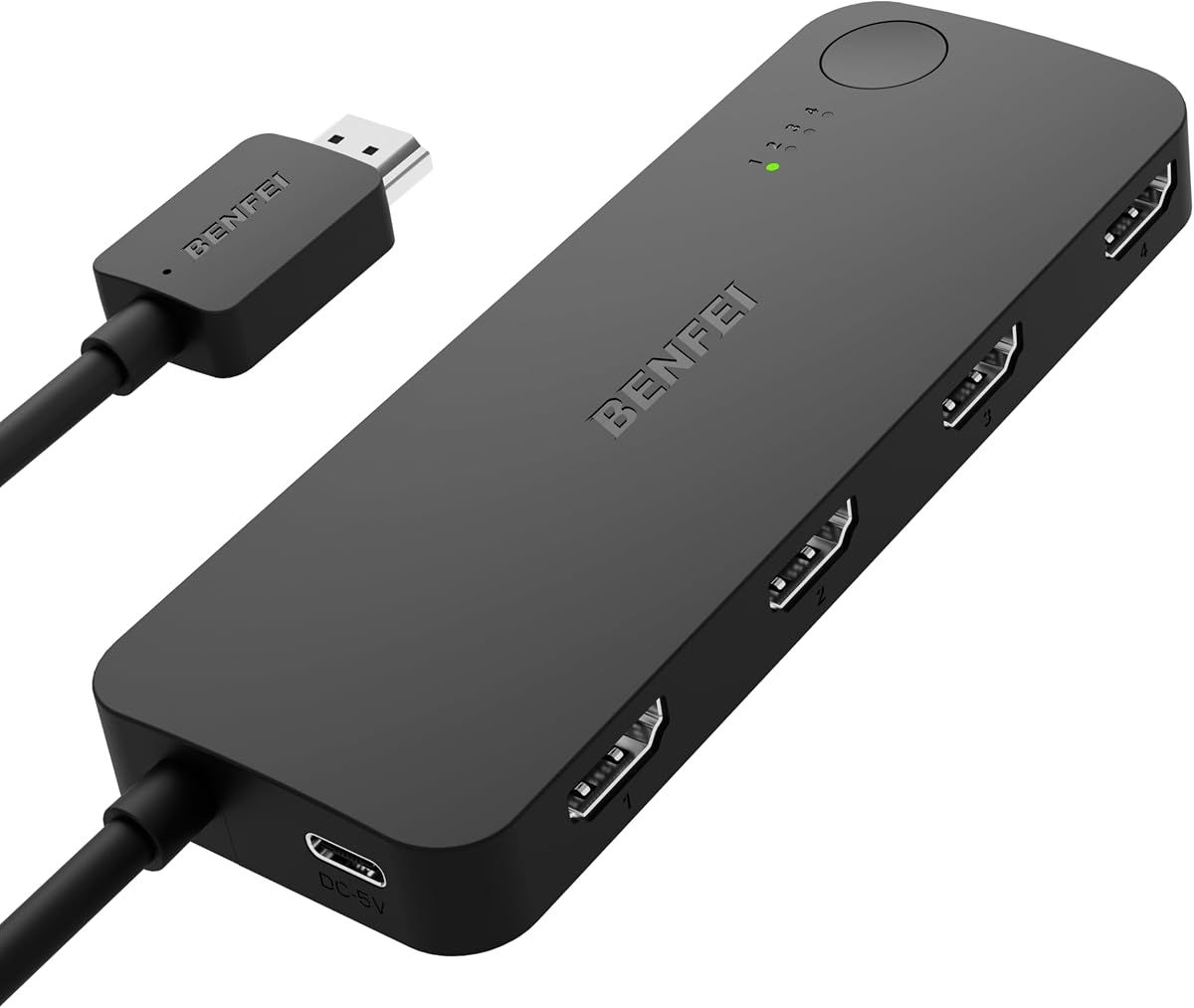
The BENFEI HDMI Switch 4 in 1 Out is a source selector rather than a general-purpose computer hub. It has a 4.0 rating and allows four HDMI devices, including a PC, laptop, game console, streaming device, or disc player, to share one television or monitor connection.
We may earn a commission when you buy through this link, at no additional cost to you.
The switch supports up to 4K at 60Hz and uses adaptive equalization for transmission across distances of up to 30 feet. Its fixed four-foot HDMI output pigtail reduces the number of loose connections around a media center, while HDCP 2.3 and 2.2 support and multiple color-depth options suit modern entertainment setups.
It is important not to interpret the input and output count as a splitter specification. The device sends one selected source to one display at a time; it cannot distribute one PC signal across four screens. It also requires the included USB-C power connection during operation, and a source change is made through the switch rather than by unplugging cables.
Choose this model when your main concern is reducing cable changes between a PC and several other HDMI sources. It is a poor fit for someone wanting a USB-C hub, extra USB ports, file transfer, or multiple simultaneous displays. For a media setup with several source devices and one screen, however, it is a focused and useful solution.
The four input ports let you keep a gaming console, streaming box, laptop, and PC near a television while using only one display-side cable. Button-based selection makes the device simple for household and presentation use.
Adaptive equalization is designed to support stable transmission over longer HDMI runs. Actual performance still depends on cable quality, source capabilities, and the resolution and refresh rate being sent.
We may earn a commission when you buy through this link, at no additional cost to you.
The Anker Laptop Docking Station Dual Monitor, 8-in-1 USB C Hub with 4K HDMI is the most complete desktop-replacement hub in this roundup. It carries a 4.5 rating and combines two HDMI outputs, wired Ethernet, USB-A data ports, memory-card access, and Power Delivery in one connection to a compatible USB-C computer.
We may earn a commission when you buy through this link, at no additional cost to you.
For display flexibility, it can stream or mirror content to one display at up to 4K and 60Hz. With two displays connected, both are supported at up to 4K and 30Hz. The Ethernet port adds dependable wired networking, while the card reader and two USB-A data connections cover common desk accessories.
Power Delivery passthrough can supply up to 85W, although a 100W Power Delivery wall charger and a USB-C-to-USB-C cable are required for that capability. Compatibility extends to USB-C, USB4, and Thunderbolt connections, as well as Windows 10, Windows 11, ChromeOS, and laptops with DisplayPort Alternate Mode and Power Delivery. Linux is excluded.
This dock is the right choice for a permanent desk setup that needs two monitors, reliable Ethernet, charging, and USB expansion. The premium feature is its combination of ports rather than unusually high dual-monitor refresh rates. If one 4K-at-60Hz screen, faster card access, and a smaller footprint matter more, consider the first Anker hub instead.
Two HDMI outputs make this model useful for extending a work area across two panels or arranging specialized displays side by side. A single display can run at 4K and 60Hz, while two-display operation is specified at up to 4K and 30Hz each.
The Ethernet port is valuable for offices where a stable wired connection matters. Together with charging, USB-A ports, and card access, it helps reduce the number of adapters connected directly to a thin laptop.
We may earn a commission when you buy through this link, at no additional cost to you.
The BENFEI USB C Hub 5-in-1 is a compact expansion option for compatible laptops and tablets. Its 4.6 rating is the highest among the listed products, and its combination of HDMI, charging, three USB-A ports, a short silicone cable, and an aluminum housing makes it especially useful for mobile work.
We may earn a commission when you buy through this link, at no additional cost to you.
The HDMI output reaches 4K at 30Hz, which is suitable for many office monitors and presentation displays but falls short of the 60Hz capability offered by the first Anker hub. One USB-A 3.2 port supports transfer speeds up to 10Gbps, while the other two USB-A ports are intended for slower accessories such as keyboards and mice.
The USB-C charging port can provide up to 90W of laptop pass-through charging, with 10W reserved for hub operations. The host-side Type-C connection is not listed as a data or video port, so users should plan to connect displays through HDMI rather than expecting DisplayPort Alternate Mode from that connector.
This hub is a compelling pick for a lightweight travel setup, hot-desking arrangement, or desk that needs only one external display. Its charging support and 10Gbps data port add genuine utility, while the 4K-at-30Hz ceiling and lack of Ethernet keep it below a full docking station in capability.
The short, soft silicone cable is intended to resist tangling and reduce strain when the hub is carried. Its compact aluminum enclosure and limited port count suit users who want essential connectivity without a full desktop dock.
A 10Gbps USB-A connection is useful for compatible external storage, while two additional USB-A ports handle everyday input devices. The charging function helps keep a laptop powered during a mobile work session.
We may earn a commission when you buy through this link, at no additional cost to you.
The Anker USB C Hub, 5-in-1 USBC to HDMI Splitter with 4K Display is a straightforward adapter for users who want one external screen, several USB connections, and laptop charging. It has a 4.4 rating and offers a clean combination of HDMI, two USB-A data ports, a USB-C data port, and a dedicated charging input.
We may earn a commission when you buy through this link, at no additional cost to you.
The HDMI port can stream or mirror content at up to 4K and 30Hz. The two USB-A ports and USB-C data port each support transfer rates up to 5Gbps, giving users a choice of connection types for storage and accessories. A dedicated USB-C Power Delivery input can deliver up to 85W of pass-through charging to the computer.
The port functions are clearly divided. The PD input is charging-only, the 5Gbps USB-C data port cannot carry video, and the HDMI port is the only display output. A compatible charger is not included. This makes the hub easy to understand once those boundaries are known, but it also means it cannot serve as a dual-screen or all-purpose video adapter.
This model works well for a straightforward desk, a conference room, or a temporary workstation that needs one 4K monitor and a few peripherals. It supports modern MacBook, Windows 10 and 11, ChromeOS, and USB-C systems with DisplayPort Alternate Mode and Power Delivery, though it is not compatible with Linux.
Separating charging, data, and video into dedicated connectors reduces ambiguity. Users can connect a display through HDMI, storage through either 5Gbps data port, and power through the PD input without confusing signal roles.
Support for USB-C, USB4, and Thunderbolt connections covers many current laptops. DisplayPort Alternate Mode and Power Delivery support are also necessary for the hub's complete video and charging functionality.
We may earn a commission when you buy through this link, at no additional cost to you.
The NEWCARE HDMI Switch 3 in 1 Out is a basic source selector for a PC, laptop, game console, streaming stick, and other HDMI equipment sharing one display. It has a 4.1 rating and focuses on straightforward manual switching, supported video formats, and an included cable rather than USB expansion or charging.
We may earn a commission when you buy through this link, at no additional cost to you.
Its output supports up to 4K at 60Hz, 2K at 60Hz, 1080p, 720p, and several legacy formats, along with 3D, 12-bit deep color, and RGB 8:8:8. The device supports HDMI 2.2 protection and is described as handling high-performance video with low lag. Manual buttons let a user select the desired input.
External power is required for proper operation, using a 5V and 1A adapter. The switch does not provide automatic source selection or a remote control, which may be inconvenient in a frequently changing media setup. Cable length also affects maximum resolution: the supplied information recommends input and output cables no longer than 4.9 feet for 4K at 60Hz.
This product is most useful in a bedroom, living room, trade show, or small conference room where three sources need quick manual selection. It is not appropriate for extending a desktop across multiple monitors, adding USB ports, or charging a computer. Buyers who need more source flexibility may prefer the four-input BENFEI switch.
Front-panel buttons provide a straightforward way to choose among three sources. This avoids menu-driven switching, although it also means the user must physically press a control whenever the desired input changes.
The advertised 4K at 60Hz capability is attainable only with suitable short cables and compatible source and display hardware. Longer runs or lower-quality cables can require a reduced resolution or refresh rate.
We may earn a commission when you buy through this link, at no additional cost to you.
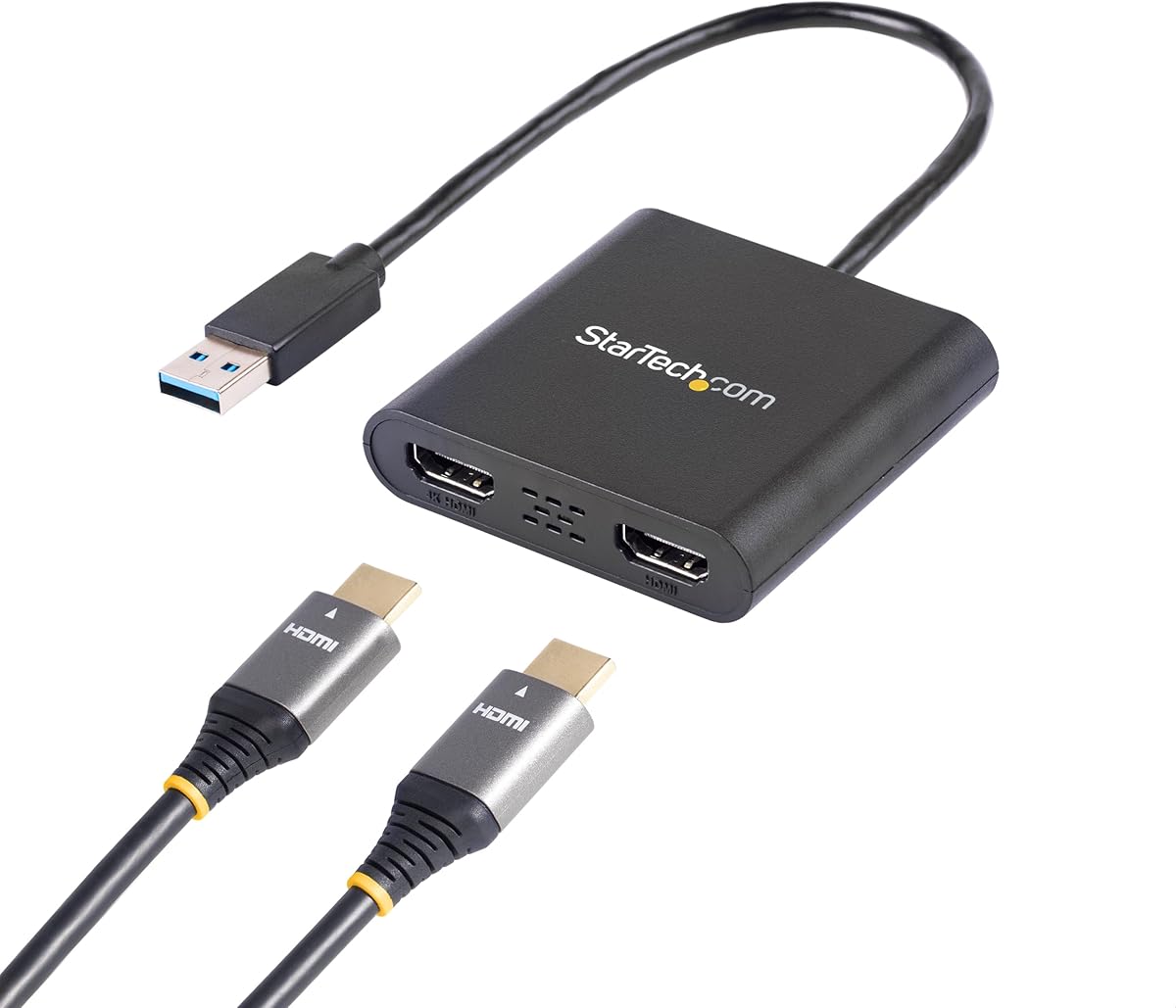
The StarTech USB-A 3.0 to Dual HDMI Adapter is designed for Windows users who need to add two external displays to a computer with a USB-A port. It has a 4.5 rating and supports one 4K display at 30Hz alongside one 1080p display at 60Hz, with two-channel audio over HDMI.
We may earn a commission when you buy through this link, at no additional cost to you.
Its USB 3.0 host connection operates at 5Gbps, and the adapter includes a 9.8-inch integrated cable. The dual female HDMI connectors support HDCP 1.4. This makes the device useful for a Windows workstation that needs broad compatibility across Intel, AMD, and Snapdragon X Copilot+ PC platforms.
The central limitation is operating-system support. The adapter is not compatible with macOS, ChromeOS, or Linux, and installation requires the supplied driver plus administrator rights. That makes it less flexible than a USB-C dock with native compatibility across several modern systems, but it can solve a specific problem for a Windows PC without USB-C.
Choose this adapter for a Windows-only multi-monitor workstation where a USB-A port is available and two displays need different maximum resolutions. Skip it if you use a Mac, need Linux support, dislike installing drivers, or want a dock that also provides Ethernet, card reading, and multiple USB peripherals.
One output is optimized for 4K at 30Hz, while the other supports 1080p at 60Hz. This asymmetric configuration is useful when one panel is a high-resolution reference display and another prioritizes smoother motion.
Driver installation and administrator access are part of the setup process. The stated platform restrictions make this a specialist adapter rather than a broadly universal display solution.
We may earn a commission when you buy through this link, at no additional cost to you.
The VIENON USB 3.0 to HDMI Adapter (7-in-1) is a broad USB-A expansion device for compatible Windows and Mac systems. It has a 4.0 rating and combines an HDMI output, a USB-C power input, one USB 3.0 port, two USB 2.0 ports, and two lower-speed USB-C data ports.
We may earn a commission when you buy through this link, at no additional cost to you.
Its HDMI output supports 1920 by 1080 resolution and can operate in mirror or extend mode. The supplied information states that Windows 7 does not support extend mode. The main USB 3.0 connection supports 5Gbps transfer, while the USB 2.0 and USB-C data connections operate at up to 480Mbps and are better suited to peripherals such as keyboards, mice, phones, and printers.
A USB-C power input supplies stable power to the hub and attached devices, which is useful when several high-draw accessories are connected. The built-in driver must be installed from a removable disk and the computer restarted before use. Compatibility is limited to Windows 7, 8, and 10 and Mac OS; Linux, Windows XP, Vista, and Windows tablets are excluded.
This adapter is most practical for a desktop or laptop that uses USB-A and needs several peripheral connections alongside a 1080p display. It is not a good choice for a 4K-focused creative desk, a modern macOS-based USB-C workflow, or anyone who needs a quick driver-free setup.
The mix of USB-A and USB-C ports accommodates older and newer accessories. A dedicated 5Gbps port supports faster storage, while the remaining ports are practical for input devices and less demanding equipment.
The hub is not fully plug-and-play because its driver is installed from the included removable media. A USB-C power connection helps ensure that multiple attached peripherals receive adequate power.
We may earn a commission when you buy through this link, at no additional cost to you.
The DisplayPort to Dual HDMI Adapter is a one-way conversion solution for a PC with DisplayPort output and two HDMI monitors. It has a 4.4 rating and stands out for supporting dual 4K-at-60Hz output, extended display modes through MST, and a driver-free connection process.
We may earn a commission when you buy through this link, at no additional cost to you.
The adapter takes one DisplayPort 1.4 signal and provides two female HDMI outputs. Both can deliver 4K at 60Hz when the source computer, graphics card, cables, and displays support the required bandwidth. It is also backward compatible with 4K at 30Hz, 1440p, and 1080p output.
Windows supports extended configurations in which the displays can show different content, as well as mirrored layouts. Mac OS support is described as SST-style mirrored arrangements. Integrated graphics may not support extended output and could be limited to mirroring, so a capable discrete graphics card is preferable for a productivity-focused multi-screen setup.
This adapter is an excellent match for a desktop with an unused DisplayPort port, compatible graphics hardware, and two HDMI-only monitors. It should not be connected to another hub, docking station, or KVM device, and it cannot drive three displays. Confirm the graphics card, port version, and desired display mode before purchasing.
Dual 4K-at-60Hz output can create a roomy desktop for documents, timelines, and reference material. The graphics card must provide enough bandwidth, and both monitors should be configured with compatible resolutions.
This device converts DisplayPort to HDMI rather than carrying video in both directions. Its strict source requirements make it a precise solution for compatible desktop hardware rather than a general-purpose laptop adapter.
We may earn a commission when you buy through this link, at no additional cost to you.
The Acer USB C Hub, 7 in 1 Multi-Port Adapter is a well-rounded expansion for compatible USB-C laptops, tablets, and desktops. It has a 4.5 rating and provides an HDMI output, two USB-A 3.1 data ports, one USB-C data port, a Type-C Power Delivery input, and both SD and microSD card slots.
We may earn a commission when you buy through this link, at no additional cost to you.
The HDMI port can mirror or extend a display at up to 4K and 30Hz or 1080p. The Type-C PD input can provide up to 100W of high-speed laptop charging, although a charger of 65W or greater is recommended for best results. Two USB-A ports and the USB-C data port support transfer rates up to 5Gbps.
Its card-reader combination is particularly useful for photographers and mobile creators. The aluminum housing is designed for durability and heat dissipation. The listed compatibility includes MacBook Pro and Air, Acer and XPS laptops, Windows, ChromeOS, Linux, and Mac OS X 10.5 or later, provided the host device supports USB-C DisplayPort Alternate Mode and Power Delivery.
This Acer hub is a good general-purpose choice for a single external monitor and several USB accessories. Its advantages are card access, broad platform support, and high charging capacity. For a 60Hz 4K display, however, the first Anker hub offers a higher video specification, and for two monitors the Anker 8-in-1 dock is the more direct option.
Dedicated SD and microSD slots allow supported memory cards to be accessed without a separate reader. This is particularly useful for transferring photos or footage before moving files to a computer or external storage.
The aluminum enclosure supports heat dissipation and suits frequent travel. The hub is designed to work across several modern operating systems, but video output still depends on DisplayPort Alternate Mode support.
We may earn a commission when you buy through this link, at no additional cost to you.
Choosing an HDMI hub for PC starts with defining the display arrangement, then matching the adapter to your computer's physical ports and supported protocols. Resolution, refresh rate, charging, storage speed, and operating-system compatibility should be considered together.
An HDMI hub, docking station, switch, splitter, and display adapter may appear similar but solve different problems. A USB-C hub adds peripherals and possibly charging to a single host connection. An HDMI switch lets one display receive a signal from one of several sources. A splitter sends one source to multiple displays, while a DisplayPort-to-HDMI adapter converts the output of a specific computer port.
Confirm whether your PC has USB-C, USB-A, or DisplayPort and whether it supports DisplayPort Alternate Mode, Power Delivery, USB4, or Thunderbolt. A physical USB-C socket is not always capable of video output. Likewise, a USB-A adapter that is limited to Windows cannot serve a Mac or Linux workstation, even if the connector fits.
For one high-quality monitor, a 4K-at-60Hz HDMI output is the most flexible target. For two screens, determine whether both need 4K at 60Hz, whether 4K at 30Hz is acceptable, and whether the displays must show different content. Some products mirror identical content on macOS, and some adapters support only a single physical display.
Power Delivery passthrough can keep a thin laptop charged while an external display and peripherals are connected. The listed charging figures range from 85W to 100W, but the actual delivery depends on the computer, charger, cable, and the power reserved for hub operations. A suitable charger and USB-C-to-USB-C cable may need to be purchased separately.
USB 3.0 and USB 3.2 data ports offer faster transfers for external storage, while USB 2.0 connections are better suited to keyboards, mice, and low-bandwidth devices. Some hubs reserve their only USB-C port for power, so do not assume every USB-C socket can carry data, video, or all three simultaneously.
Some adapters work immediately, while others require a driver from built-in media, administrator access, a restart, or an external power connection. HDMI switches also need external power and change sources manually. These requirements matter most in offices, conference rooms, and shared systems where a fast, dependable setup is important.
A permanent dock can be larger and offer Ethernet, card readers, and multiple display outputs. A travel hub is usually smaller, uses a short host cable, and prioritizes charging and essential peripherals. Aluminum housings can improve heat dissipation, while flexible silicone cables may be easier to carry. Choose the layout that matches the frequency and location of use.
Fixed HDMI cables, external power leads, removable driver media, and host cables vary between products. Integrated cables can simplify media-center wiring, but removable cables are easier to replace. Warranty length and technical support may also matter for an office deployment, particularly when a device will serve several users.
Before connecting anything, inspect the hub, host cable, display cables, and power components for visible damage. Confirm that the computer has the required port and protocols, and that the display and graphics system can support the intended resolution, refresh rate, and extended or mirrored mode.
Connect the hub to the computer first, then attach the display to the HDMI output. If the product includes a separate power connection, provide it before attaching multiple high-power peripherals. For a switch, connect each source, connect the output to the display, and use the physical controls to select the desired input.
After installation, configure the display through the computer's operating system and set the resolution and refresh rate manually if needed. Keep ports unobstructed, route cables without sharp bends, and avoid exposing the hub or removable media to moisture, excessive heat, or impact. Update drivers when instructed and use compatible, reliable cables for stable video.
Yes, but only some products in this guide have two physical display outputs. The Anker 8-in-1 docking station includes dual HDMI, while the StarTech USB-A adapter and DisplayPort-to-HDMI adapter also support two displays. Most of the smaller USB-C hubs have only one HDMI port, and an HDMI switch with multiple inputs does not mean it can show multiple sources at the same time.
An HDMI hub or docking station adds ports to a computer and may provide display, USB, card-reading, and charging functions. An HDMI switch accepts several source devices and routes one selected source to one display. The BENFEI 4-in-1 and NEWCARE 3-in-1 products in this guide are switches rather than computer docking hubs.
No. The host USB-C connection must support DisplayPort Alternate Mode or another compatible video function. In addition, some hub ports are dedicated only to power or data. Check the product's port descriptions carefully and confirm that the computer supports external video output before purchasing.
A 4K-capable hub still needs a compatible computer, graphics hardware, display, and HDMI cable. Maximum resolution and refresh rate also depend on whether one or multiple displays are attached. The 4K-at-60Hz models provide more headroom, while several more compact hubs are limited to 4K at 30Hz.
The docking and USB hub products in this guide draw power through the host computer, although some recommend a separate power connection for stable operation. Both HDMI switches clearly require external power during use. Follow the included requirements, especially when several high-power USB peripherals are connected.
It depends on the adapter and the MacBook's available ports. The StarTech dual-HDMI adapter is Windows-only, while the VIENON USB-A adapter lists Mac OS support but requires driver installation. A USB-C MacBook can also use many compatible USB-C hubs, provided its port supports the necessary video and charging protocols.
The device, operating system, graphics hardware, or selected display mode may support mirroring rather than independent extension. Some macOS configurations in this roundup are limited to mirrored content, and integrated graphics may not support a full multi-monitor extended layout. Verify the product requirements and update display settings in the operating system.
Choose a docking station for a permanent desk with two displays, Ethernet, charging, and several USB accessories. Choose a simple USB-C hub for one display, a small collection of peripherals, and frequent travel. The more compact products also tend to be easier to carry between home, office, and meeting spaces.
The Anker 7-in-1 USB C Hub is the strongest all-around recommendation because it combines 4K-at-60Hz HDMI, 5Gbps data ports, 85W charging, and dual card readers in a compact package. The BENFEI 5-in-1 stands out for portable construction, 100W charging, and a 10Gbps data port, while the Anker 8-in-1 dock leads the premium group with dual HDMI and Ethernet.
Prioritize the connection your computer actually supports, then decide whether you need one display, two displays, several source devices, faster storage, or wired networking. Do not treat port count as the only measure of usefulness, and read the notes about video, charging, drivers, operating systems, and source-device requirements.
Ratings and specifications provide a useful starting point, but current prices and availability can change. Check the live product listing, current compatibility details, included accessories, and the latest user feedback before making a final purchase decision.