
HP DeskJet 2955
3.7Editor score
Color print, copy, scan
Dual-band wireless connectivity
Compact 60-sheet input tray
A Chromebook compatible printer should make schoolwork, reports, forms, and everyday color documents easy to produce from a Chromebook. The most useful models combine reliable wireless connectivity with simple setup, clear paper handling, and enough print, copy, and scan features for a busy home or compact office.
This guide compares ten all-in-one inkjet printers and a portable option based on their documented connectivity, printing functions, displays, paper capacities, document feeders, duplex support, media handling, and mobile-printing features. It also distinguishes basic home models from more capable machines intended for heavier document workflows.
The selections show where compact printers excel, why automatic duplexing is useful, and when an automatic document feeder or portable design makes sense. Product details and configurations can change, so readers should verify current operating-system support, included accessories, connection requirements, and compatibility before purchasing.
3.7Editor score

4.2Editor score

4.3Editor score
As an Amazon Associate we earn from qualifying purchases.
The comparison highlights the features that most directly affect Chromebook use: wireless access, mobile printing, automatic duplexing, document feeders, displays, paper capacity, and supported media. It also separates basic home printers from multifunction models built for more demanding school and office workflows.

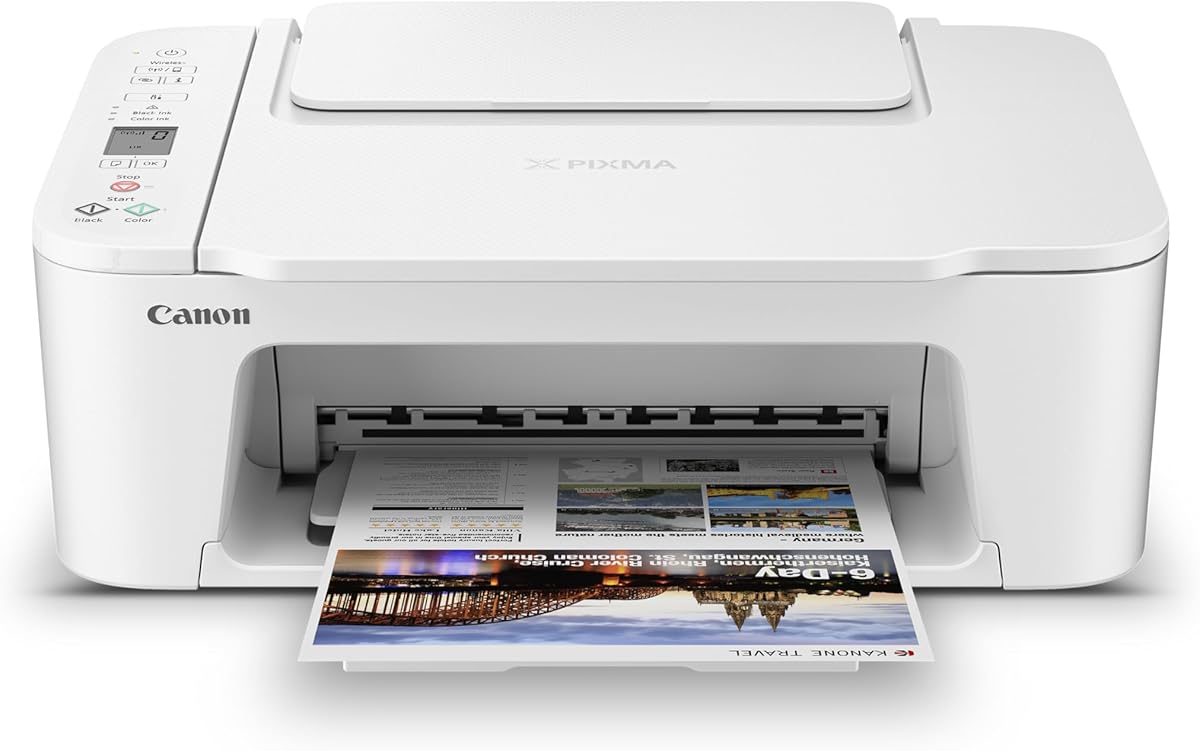


The HP DeskJet 2955 has a 3.7 rating and presents a straightforward option for households that want color printing, copying, and scanning without a complicated control system. Its compact design, icon LCD, 60-sheet input tray, and wireless connectivity align well with a Chromebook-centered workspace where most users print school assignments, forms, recipes, letters, and other everyday documents.
We may earn a commission when you buy through this link, at no additional cost to you.
A major strength is the combination of dual-band Wi-Fi and the HP app, which supports printing, scanning, copying, and faxing from a smartphone. HP AI is also included for formatting web pages and emails, removing unwanted content to avoid awkward layouts or wasted pages. Black output reaches up to 7.5 pages per minute and color output up to 5.5 pages per minute, making the printer more useful for regular home-office tasks than a highly specialized photo machine.
The trade-offs are clear. This model does not include automatic duplex printing, so longer documents must be handled one sheet at a time, and the 60-sheet input tray requires more frequent refilling than larger-capacity models. It is also a basic home all-in-one rather than a document-workflow machine with an automatic document feeder. Those limitations may not matter for occasional users, but they can become frustrating for students or remote workers producing frequent multi-page assignments.
It is best for buyers who want a simple, compact, color-capable printer that pairs easily with mobile devices and a wireless home network. Choose the HP DeskJet 2955 when the core priorities are printing, scanning, copying, and uncomplicated operation rather than automatic two-sided output or automated document feeding.
Dual-band Wi-Fi and the HP app reduce the friction of printing from a connected device. The printer also includes AI-assisted formatting for web pages and emails, helping produce cleaner documents without extensive manual adjustments.
The 60-sheet tray and straightforward icon LCD suit routine letters, financial documents, recipes, and schoolwork. Automatic duplexing and an automatic document feeder are the main features missing for heavier paperwork.
We may earn a commission when you buy through this link, at no additional cost to you.
The Canon PIXMA TS6520 combines a 4.2 rating with a feature set that is unusually balanced for a compact home printer. Automatic two-sided printing, a 1.42-inch monochrome OLED, dual-band Wi-Fi, and integrated scanning make it a particularly coherent option for a Chromebook user who wants good everyday output without a large office machine.
We may earn a commission when you buy through this link, at no additional cost to you.
Its two-cartridge hybrid ink system is designed to produce sharp text and vivid colors for documents and photos. The OLED provides convenient access to ink levels, printer status, and settings, while automatic duplexing reduces paper consumption and can simplify the production of longer reports. Wireless access to either the 2.4GHz or 5GHz band helps support a stable connection in homes where other wireless devices may create congestion.
Canon PRINT, Apple AirPrint, and Mopria Print Service support mobile printing from compatible devices. The printer also supports documents and photos up to 8.5 by 11 inches, with or without borders. However, it lacks an automatic document feeder, meaning multi-page scanning and copying require manual page placement. It also does not advertise fax support, so buyers needing that function should look elsewhere.
The PIXMA TS6520 is an excellent fit for students, home workers, and families who regularly print worksheets, reports, recipes, or photos and want automatic duplexing. It may be the most complete compact option in this group, especially for buyers who value a clear OLED and stable dual-band connectivity without needing a document feeder.
Automatic two-sided printing is a meaningful convenience for assignments, research papers, and office forms. It reduces manual paper handling and makes the printer more efficient for recurring document work.
The monochrome OLED gives quick access to ink status and printer settings. Dual-band Wi-Fi and support for Canon PRINT, AirPrint, and Mopria broaden the ways compatible devices can reach the printer.
We may earn a commission when you buy through this link, at no additional cost to you.
The Canon PIXMA TS4320 has a 4.0 rating and is built around the same practical combination found in the TS6520: color printing, copying, scanning, automatic duplexing, and dual-band wireless connectivity. It is a strong candidate for Chromebook users who want a compact printer that can produce both crisp text and vivid photographic output.
We may earn a commission when you buy through this link, at no additional cost to you.
The two-cartridge hybrid ink system supports documents and photos, while automatic duplexing helps reduce paper use and shortens the process of creating longer school or office documents. Canon PRINT, Apple AirPrint, and Mopria Print Service provide familiar routes for mobile printing, and the printer can handle letter-size documents and photos with or without borders. Its EPEAT Silver and ENERGY STAR certifications may also appeal to environmentally conscious buyers.
The main drawback is the lack of an automatic document feeder. Scanning or copying a multi-page packet takes more effort because pages must be placed individually. The supplied product information also does not describe a dedicated display, which may make status checks less convenient than on models with an OLED or LCD. Buyers who frequently scan lengthy records should account for that added handling time.
This printer is well suited to a student bedroom, dorm-like workspace, or compact home office where a Chromebook handles most digital work and printing needs are centered on assignments, forms, recipes, and photos. Choose the TS4320 for balanced capabilities and efficient duplex output, particularly if those functions matter more than automated document feeding.
Automatic two-sided printing brings efficiency to a compact design. It is especially helpful for reports, study notes, and workplace documents that otherwise create unnecessary paper handling.
Support for Canon PRINT, Apple AirPrint, and Mopria makes the TS4320 approachable for a mixed-device household. Its dual-band wireless connection can also improve reliability in busy home networks.
We may earn a commission when you buy through this link, at no additional cost to you.
The Canon PIXMA TS3720 stands out because its product information explicitly states that it works with Chromebook. That direct compatibility makes it an easy recommendation for anyone whose primary computer is a Chromebook and who wants a printer capable of handling schoolwork and other documents without relying on a computer-based setup process.
We may earn a commission when you buy through this link, at no additional cost to you.
Wireless setup can be completed without a computer using dual-band Wi-Fi at either 2.4GHz or 5GHz. A 1.5-inch segment LCD provides basic status information, while mobile printing is available through Canon PRINT, Apple AirPrint, and Mopria Print Service. Two easy-to-replace ink cartridges simplify maintenance, and the printer supports envelopes, photos, high-resolution paper, banners, square photos, and borderless images up to 5 by 7 inches.
Its main limitation is explicit: it performs single-sided printing only. That makes it less suitable for users who regularly produce long reports and want automatic duplexing. It also lacks an automatic document feeder, so multi-page scanning and copying are manual. Another consideration is that the listed speed of approximately 7.7 black and 4 color images per minute makes it appropriate for routine rather than high-volume production.
The TS3720 is best for Chromebook households focused on simple home printing, creative projects, and occasional school documents. Its explicit Chromebook support and accessible setup are meaningful advantages, while buyers who routinely handle multipage reports may prefer a model with duplex printing and an automatic document feeder.
The manufacturer information specifically identifies Chromebook support, directly addressing a common concern for buyers. Wireless setup can also be completed without involving a computer.
Support for envelopes, banners, square photos, and borderless images gives the TS3720 more creative flexibility. The tradeoff is single-sided operation and manual handling for multipage documents.
We may earn a commission when you buy through this link, at no additional cost to you.
The Canon PIXMA TR4720 has a 3.9 rating and distinguishes itself through a genuine four-function design: wireless printing, copying, scanning, and built-in fax. For a Chromebook user in a home office, the combination of an automatic document feeder, automatic duplex printing, and 100-sheet capacity creates a more complete document-management setup than most compact models.
We may earn a commission when you buy through this link, at no additional cost to you.
The automatic document feeder is especially useful when scanning or copying packets, while automatic duplexing reduces the need to turn pages manually. Black documents print at approximately 8.8 pages per minute and color documents at approximately 4.4 pages per minute, with a borderless 4-by-6-inch photo taking about 65 seconds. The printer supports documents, photos, and borderless output up to 8.5 by 11 inches.
Ink replacement is designed to be straightforward, and the included Alexa integration can provide low-ink notifications and enable smart reorders when enrolled. That is helpful for maintaining uninterrupted school or office printing. The trade-off is that this is a more substantial desktop printer than the basic models in the guide, and its listed document speeds are not especially fast. It also has a 3.9 rating, slightly below several compact alternatives.
The TR4720 is a strong choice for a home-office Chromebook user who scans, copies, or faxes regularly and wants fewer manual steps. It is less compelling for occasional users who only need uncomplicated color printing and prefer a smaller, simpler machine without fax capabilities.
The automatic document feeder reduces the effort involved in copying and scanning larger packets. Combined with duplex printing, it supports a more efficient paper-based workflow.
Built-in fax broadens the machine beyond the usual print-copy-scan format. Alexa enrollment can also provide low-ink notifications and support smart reorders.
We may earn a commission when you buy through this link, at no additional cost to you.
The Brother Work Smart 1360 has a 3.8 rating and is designed for users who want a more productive home-office printer without moving beyond a compact inkjet all-in-one. Its 150-sheet tray, 20-sheet automatic document feeder, and automatic duplex printing offer more workflow capacity than most entry-level models in this comparison.
We may earn a commission when you buy through this link, at no additional cost to you.
Black printing reaches up to 16 pages per minute, the highest listed black speed among the products here, while color output reaches up to 9 pages per minute. The 1.8-inch color display provides on-device navigation and access to cloud services including Google Drive, Dropbox, Box, and OneDrive. That cloud integration is particularly relevant for Chromebook workflows, where documents are commonly stored and shared through online accounts.
Brother Mobile Connect extends printing, copying, scanning, and device management to a mobile device, while Page Gauge helps monitor ink usage. The printer can also connect wirelessly or by USB. The principal limitations are the absence of a built-in fax and a rated score of 3.8. Buyers who need physical fax capability should move to the TR4720, while those prioritizing simple occasional printing may find the Work Smart 1360 more substantial than necessary.
This model is a good match for a Chromebook user who regularly prints reports, handles scanned packets, and works with cloud-hosted files. Its strongest case is productivity-oriented: large paper capacity, a document feeder, duplexing, fast black output, and direct cloud access in one compact unit.
The color display gives direct access to Google Drive, Dropbox, Box, OneDrive, and other cloud apps. This reduces the steps required to retrieve and print files stored in services commonly used with a Chromebook.
A 150-sheet tray, 20-sheet document feeder, and automatic duplexing support frequent output. Fast black printing makes it well suited to reports and school documents.
We may earn a commission when you buy through this link, at no additional cost to you.
The Canon PIXMA TR7120 has a 4.3 rating, the highest in the group, and combines an automatic document feeder, automatic duplex printing, wireless connectivity, and a 1.42-inch monochrome OLED. It is the most complete choice for a Chromebook user who wants a compact but genuinely capable home-office printer.
We may earn a commission when you buy through this link, at no additional cost to you.
Its strengths cover the entire basic office workflow. The automatic document feeder handles multipage copying and scanning, while automatic duplex printing reduces paper consumption for longer documents. The OLED lets users check ink levels and printer status at a glance. Dual-band Wi-Fi supports a more stable connection, and Canon PRINT, Apple AirPrint, and Mopria provide flexible mobile access.
The two-cartridge hybrid ink system is designed for sharp text and vivid color, supporting documents and photos up to 8.5 by 11 inches with or without borders. Setup is described as easy from a smartphone or computer, which suits a Chromebook-oriented household. The tradeoff is that this combination of features may be more than a casual user needs, and the physical design is less minimal than a basic single-function home printer.
Choose the TR7120 when document efficiency, clear status information, and flexible printing matter more than minimalism. It is a particularly strong recommendation for students approaching a term with many assignments, home-office workers, and families that regularly scan or copy multipage materials.
Automatic duplexing and a document feeder cover the two most labor-intensive paper tasks. The result is a smoother workflow for reports, forms, and copied packets.
The 1.42-inch monochrome OLED provides quick access to ink levels and settings. It adds useful visibility while preserving a relatively compact design.
We may earn a commission when you buy through this link, at no additional cost to you.
The HP Envy 6155 has a 4.1 rating and stands out for its 2.4-inch color touchscreen, automatic duplexing, and 100-sheet input tray. The interface is a major attraction for users who want straightforward on-device control without navigating a small segment display or relying entirely on a phone or computer.
We may earn a commission when you buy through this link, at no additional cost to you.
Print speeds reach up to 10 pages per minute in black and 7 pages per minute in color, making it suitably responsive for homework, everyday color documents, and borderless photos. HP P3 technology is designed to produce color output that looks vibrant on the printed page. The printer also supports automatic two-sided printing, wireless connectivity, and HP app functions for printing, scanning, copying, and faxing from a smartphone.
HP AI can format web pages and emails by removing unwanted content, reducing awkward layouts and wasted pages. Dual-band Wi-Fi helps maintain a reliable connection. The important cartridge restriction is that this printer is intended to work with cartridges containing original HP chips or circuitry, and it blocks cartridges using non-HP chips or circuitry. Buyers should consider that limitation carefully, particularly if they have previously used compatible third-party cartridges.
The Envy 6155 is a strong fit for a household that values a polished touchscreen and frequent color printing. It offers more visible controls and faster output than many compact models, but its touchscreen requires more space and its cartridge policy is more restrictive than the products that do not specify such a restriction.
The 2.4-inch color touchscreen makes printer status, settings, and common functions easier to access directly. It is particularly useful for mixed users who do not want every adjustment to happen in an app.
HP P3 technology supports vivid color printing, while HP AI cleans up web pages and emails. Automatic duplexing and a 100-sheet tray add everyday document efficiency.
We may earn a commission when you buy through this link, at no additional cost to you.
The HP DeskJet 4355 has a 3.5 rating and offers a compact three-function design with a feature that many similarly sized competitors lack: a 35-sheet automatic document feeder. It also retains a familiar HP control panel, wireless printing, and mobile app support in a package designed to fit into a home.
We may earn a commission when you buy through this link, at no additional cost to you.
The 35-sheet automatic document feeder is useful for copying or scanning several pages without repeatedly handling the original. Color printing, copying, and scanning cover common student needs, and the 60-sheet input tray is sufficient for a modest quantity of letter paper. Black output reaches up to 8.5 pages per minute and color output up to 5.5 pages per minute.
HP AI formats web pages and emails to remove unwanted content, while the HP app supports printing, scanning, copying, and faxing from a smartphone. Dual-band Wi-Fi is included, and the printer is ENERGY STAR and EPEAT certified. Its main drawback is that it does not offer automatic duplex printing, and its rating is the lowest in the guide, which may encourage cautious buyers to compare user feedback closely.
The DeskJet 4355 is most appropriate for a student or home user who values the convenience of an automatic document feeder in a relatively compact design. It is less attractive for long duplex-heavy documents, but it balances document handling with simple color printing and wireless access.
The 35-sheet document feeder separates this model from many basic compact printers. It reduces repetitive page placement when copying or scanning classroom materials.
Dual-band Wi-Fi, the HP app, and AI-assisted formatting provide convenient device access. The lack of automatic duplexing remains the key limitation for frequent long documents.
We may earn a commission when you buy through this link, at no additional cost to you.
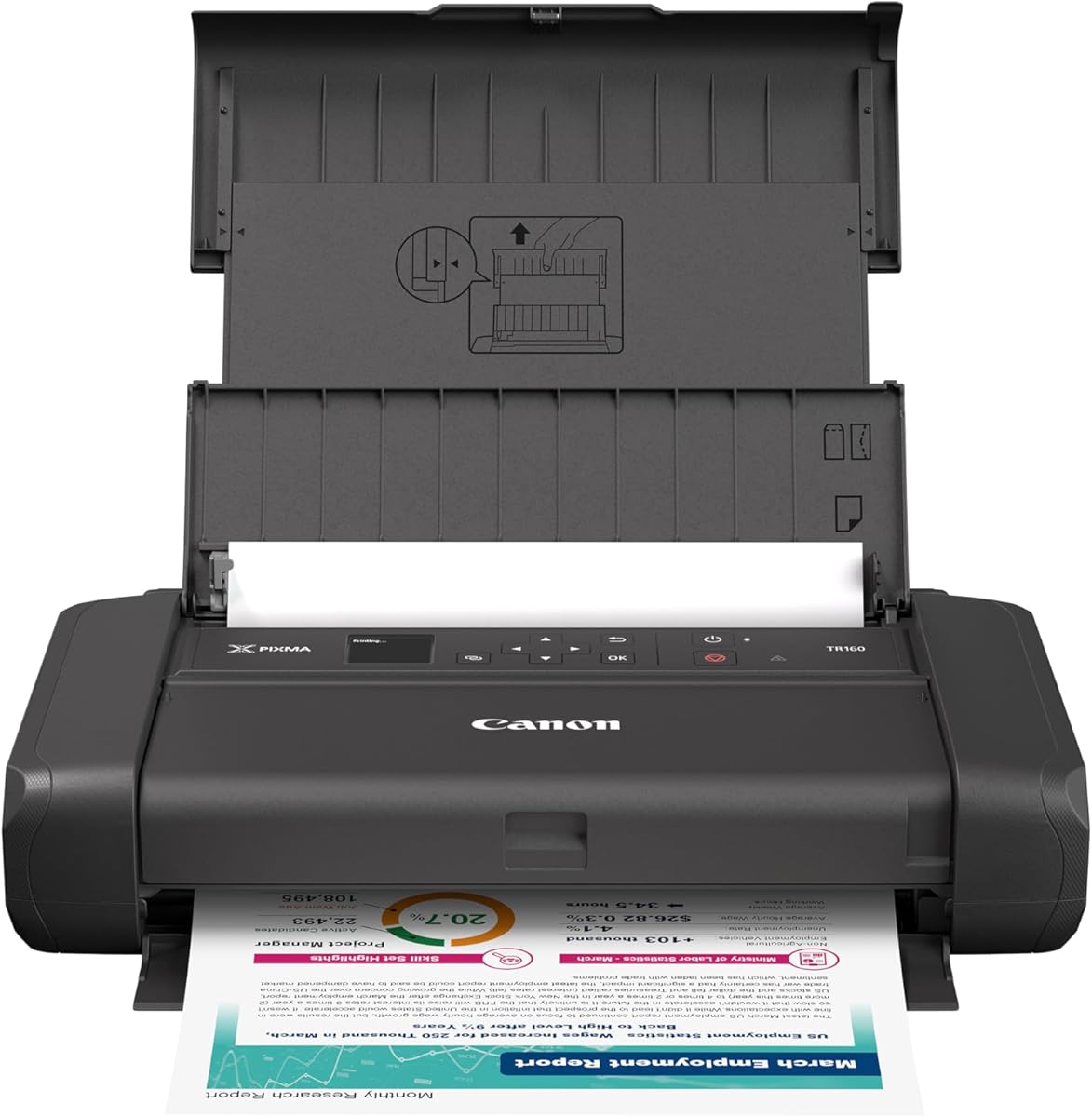
The Canon PIXMA TR160 has a 4.2 rating and takes a different approach from the other products by emphasizing portability. Its lightweight body is designed to fit into a bag or backpack, making it a strong option for students and mobile workers who need to print away from a permanent desk.
We may earn a commission when you buy through this link, at no additional cost to you.
Despite its portable format, the TR160 supports documents and photos up to 8.5 by 11 inches. A five-color hybrid ink system is intended to produce sharp black text and rich color, including square and borderless prints. The 1.44-inch monochrome OLED provides quick access to ink levels, printer status, and other settings.
Connectivity is versatile. Users can print through the Canon PRINT app, Apple AirPrint, or Mopria Print Service, and wireless direct mode allows a compatible device to connect without a wireless router. The trade-off is that this is a printer only: it does not provide scanning or copying. It also lacks automatic duplexing and an automatic document feeder, so it is better suited to occasional travel printing than a centralized office workflow.
Choose the TR160 when portability and flexible wireless access are the priorities. It is well suited to presentations, travel documents, photos, and quick output from a Chromebook or compatible mobile device, but it is not the most complete solution for a home office that needs to scan, copy, and process long documents.
The lightweight portable body eliminates the need to keep the printer permanently on a desk. It is designed for documents and photos carried in a bag or backpack.
Wireless direct mode links a compatible device without requiring a wireless router. Canon PRINT, Apple AirPrint, and Mopria add several convenient printing paths.
We may earn a commission when you buy through this link, at no additional cost to you.
The right Chromebook printer depends on how you print, which wireless standards you need, how much paper you handle, and whether scanning, copying, faxing, duplexing, or portability are essential. Comparing these factors before choosing a model can prevent setup frustration and unnecessary upgrades later.
Begin by confirming that the printer supports the connection method used by your Chromebook and household. Canon PRINT, Apple AirPrint, and Mopria Print Service are explicitly listed on several Canon models, while the HP app appears on multiple HP products. Dual-band Wi-Fi support can also be useful in crowded networks because it can connect over either 2.4GHz or 5GHz. The Canon PIXMA TS3720 has the clearest explicit Chromebook support in the supplied information, while the portable TR160 offers direct wireless connections without requiring a router.
Most Chromebook users need at least printing, but an all-in-one can also provide a convenient way to scan assignments, preserve receipts, copy forms, or digitize paper records. The HP DeskJet 2955, Canon PIXMA TS6520, TS4320, TS3720, and Brother Work Smart 1360 cover print, copy, and scan. The TR7120 adds an automatic document feeder for easier multipage handling, while the TR4720 goes further with built-in fax. The Canon PIXMA TR160 is print-only and is best regarded as a portable specialist rather than a general office replacement.
Automatic two-sided printing is one of the most useful distinctions in this guide. It can reduce paper consumption and eliminate the need to manually turn multipage documents. The Canon TS6520, TS4320, TR4720, and TR7120 support it, as do the Brother Work Smart 1360 and HP Envy 6155. The HP DeskJet 2955 and 4355 do not list automatic duplexing, and the TS3720 is explicitly single-sided only. The portable TR160 also omits duplexing.
An automatic document feeder is especially helpful for students and remote workers who regularly copy or scan packets. The Canon TR7120 and TR4720 include this feature, the Brother Work Smart 1360 has a 20-sheet feeder, and the HP DeskJet 4355 has a 35-sheet feeder. The other models require pages to be placed individually on the scanner. If your Chromebook workflow regularly involves signed forms, research packets, or classroom worksheets, this distinction can materially change daily convenience.
A display gives you quick access to ink levels, printer status, and settings without opening an app. The Canon TS6520, TR7120, and TR160 use a 1.42-inch or 1.44-inch monochrome OLED. The TS3720 has a 1.5-inch segment LCD, the Brother Work Smart 1360 has a 1.8-inch color display, and the HP Envy 6155 offers the largest listed interface at 2.4 inches. Models without a specified display may require more app-based interaction.
Paper capacity should reflect how often you print and whether refilling trays is inconvenient for your setup. Capacities range from a 60-sheet input tray on the HP DeskJet 2955 and 4355 to 100 sheets on the Canon TR4720 and HP Envy 6155, and 150 sheets on the Brother Work Smart 1360. Media support is also important for photos, envelopes, banners, square prints, and borderless output. Check the listed maximum dimensions and compatible paper types before ordering specialized media.
For a Chromebook, speed matters most when printing batches of web pages, reports, or coursework. The Brother Work Smart 1360 lists up to 16 black pages per minute, the HP Envy 6155 up to 10, and the HP DeskJet 4355 up to 8.5. Color output is generally slower, with listed maximums ranging from 4 to 9 pages per minute depending on the model. Sharp text and vivid color support are common goals across the selected inkjet printers.
Portability matters if you work away from a home desk, attend classes elsewhere, or need the printer stored between uses. The Canon PIXMA TR160 is explicitly lightweight and portable, includes wireless direct mode, and can print letter-size documents and photos from a bag or backpack. Most other models are designed as compact desktop printers. A portable model usually sacrifices scanning, copying, faxing, automatic duplexing, and large paper capacity, so confirm those trade-offs before choosing one.
Begin by unpacking the printer, installing the supplied ink cartridges, loading a small number of sheets, and connecting it to the same wireless network as the Chromebook. Use the manufacturer app, the provided setup process, AirPrint, or Mopria as appropriate for the model. If using the Canon PIXMA TS3720, its setup can be completed without a computer, while the TR160 can also support direct wireless connections without a router. Print a test page and confirm that alignment, color, and page margins look correct before beginning a larger job.
For routine use, open the document in the Chromebook and select the newly added printer from the print dialog. Choose paper size, orientation, copies, and duplex settings before confirming the job. Use automatic document feeding for multipage scans or copies where the model supports it, and clean the scanner glass regularly for clear results. For photos, use supported borderless or square formats and choose the appropriate media setting so the printer handles the sheet correctly.
Care for the printer by keeping the output area unobstructed, feeding clean, supported paper, and using ink cartridges according to the manufacturer's guidance. A useful routine is to check ink status through the printer display or app, run cleaning cycles only when directed, and keep the scanner lid closed to prevent dust. Note the HP Envy 6155's stated requirement for original HP chips or circuitry. If output becomes streaked, pages feed incorrectly, or wireless jobs fail, check ink, paper alignment, network status, and app connectivity before performing a more involved reset.
They are included because they offer wireless and mobile-printing features suited to Chromebook use, but buyers should verify the current operating-system requirements on the product listing before purchasing. The Canon PIXMA TS3720 explicitly states that it works with a Chromebook. Other models support app-based or service-based mobile printing, so the exact setup path depends on the operating system and the printing application available on it.
The Canon PIXMA TS3720 is a strong candidate because its product information explicitly identifies Chromebook compatibility and describes setup without requiring a computer. The other wireless models can also be configured through their manufacturer apps, but compatibility should be confirmed before purchase. Selecting a model on the same 2.4GHz or 5GHz network as the Chromebook can simplify the initial connection.
It is helpful but not essential for every student. Automatic duplexing saves paper and makes longer reports easier to print, especially when many assignments are due at once. If you mostly print one-page worksheets, a compact single-sided model may be sufficient, while regular report printing makes duplexing a more valuable feature.
Models with automatic document feeders handle multipage scanning more conveniently. The Canon TR7120 and TR4720 include feeders, while the Brother Work Smart 1360 has a 20-sheet feeder and the HP DeskJet 4355 has a 35-sheet feeder. If you mostly scan occasional pages, a flatbed scanner may be adequate, but feeding multiple pages by hand can be slow.
Several models support letter-size or smaller photos, including the Canon TS6520, TS4320, TS3720, TR4720, TR7120, and TR160. The TS3720 additionally lists support for 5-by-5-inch square photos and borderless photos up to 5 by 7 inches. Use the appropriate photo-media setting and supported paper to achieve the intended result.
It can be helpful in a busy household because dual-band printers can use either 2.4GHz or 5GHz rather than relying on one crowded band. The Canon TS6520, TS4320, TS3720, and TR7120, along with the Brother Work Smart 1360 and supported HP models, list dual-band connectivity. Your router must provide a compatible 2.4GHz or 5GHz network for the printer and Chromebook to communicate.
The Canon PIXMA TR160 is the clear portable option because it is explicitly lightweight and designed to fit in a bag or backpack. It supports Canon PRINT, Apple AirPrint, Mopria Print Service, and wireless direct mode. Its limitations are that it only prints and lacks scanning, copying, automatic duplexing, and a document feeder.
A single-function printer can meet basic printing needs, but an all-in-one adds useful scanning and copying without requiring separate devices. The Canon PIXMA TR160 offers the most portable print-focused design, while the TS6520, TS4320, TS3720, Brother Work Smart 1360, and HP Envy 6155 cover the core print-copy-scan functions.
The Canon PIXMA TR7120 is the strongest all-around selection for a Chromebook user who values automatic duplexing, a document feeder, clear status information, and compact productivity. The Canon PIXMA TS6520 offers the best budget-oriented mix of duplexing, a useful OLED, and dual-band wireless connectivity, while the HP DeskJet 2955 is a straightforward option for basic color printing, copying, and scanning.
Prioritize the features that match your actual workload. Choose automatic duplexing for recurring reports, a document feeder for packets, a larger tray for frequent output, and a portable design for travel. The Canon TS3720 is notable for explicit Chromebook support, the Brother Work Smart 1360 stands out for cloud connectivity and productivity, and the HP Envy 6155 provides the most expansive touchscreen experience.
Before making a final selection, check the current product listing for operating-system support, included accessories, connection requirements, cartridge compatibility, and the latest configuration. These details can change, and confirming them against your Chromebook version and daily workflow will help you select the model most likely to be convenient and dependable.