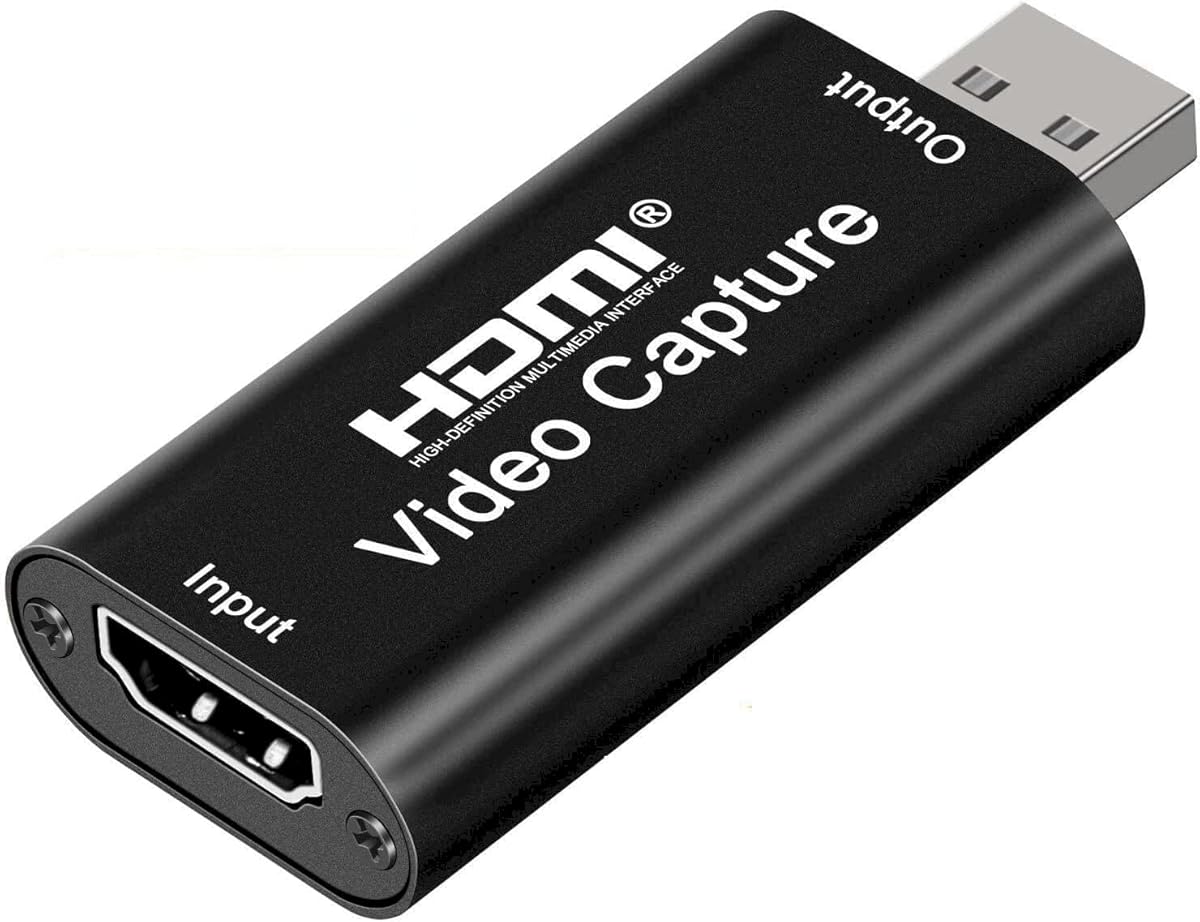
Audio Express AXHDCAP 4K
4.4Editor score
1080p30 USB output
4K30 HDMI input
Stereo audio capture
Driver-free setup
Our HDMI to USB capture device guide compares ten options for gaming, streaming, recording, and meetings, covering resolution, latency, audio, and compatibility
An HDMI to USB capture device turns an HDMI source into a USB webcam-style signal that a computer can record, preview, or broadcast. The best models combine practical resolution options, responsive performance, dependable audio, broad platform support, and simple setup. The right choice depends heavily on what you are capturing and which computer you use.
This guide compares ten capture devices based on the supplied specifications, including maximum input and output resolution, frame rates, USB interfaces, latency claims, audio features, loop-out support, operating-system compatibility, and installation requirements. It covers budget-friendly adapters, portable options, gaming cards, camera-focused devices, and a more advanced professional capture solution.
The selections show which products are strongest for common use cases such as console gameplay, live streaming, online teaching, video meetings, and camera capture. Every pick should be checked for source format, HDCP, USB port, and software compatibility before purchase. Prices and availability can change, so confirm current listings when deciding where to buy.
4.4Editor score
4.4Editor score

4.7Editor score
The table below compares all ten devices by their strongest documented features, including input and output limits, USB connectivity, audio support, and the environments in which each card is designed to work.



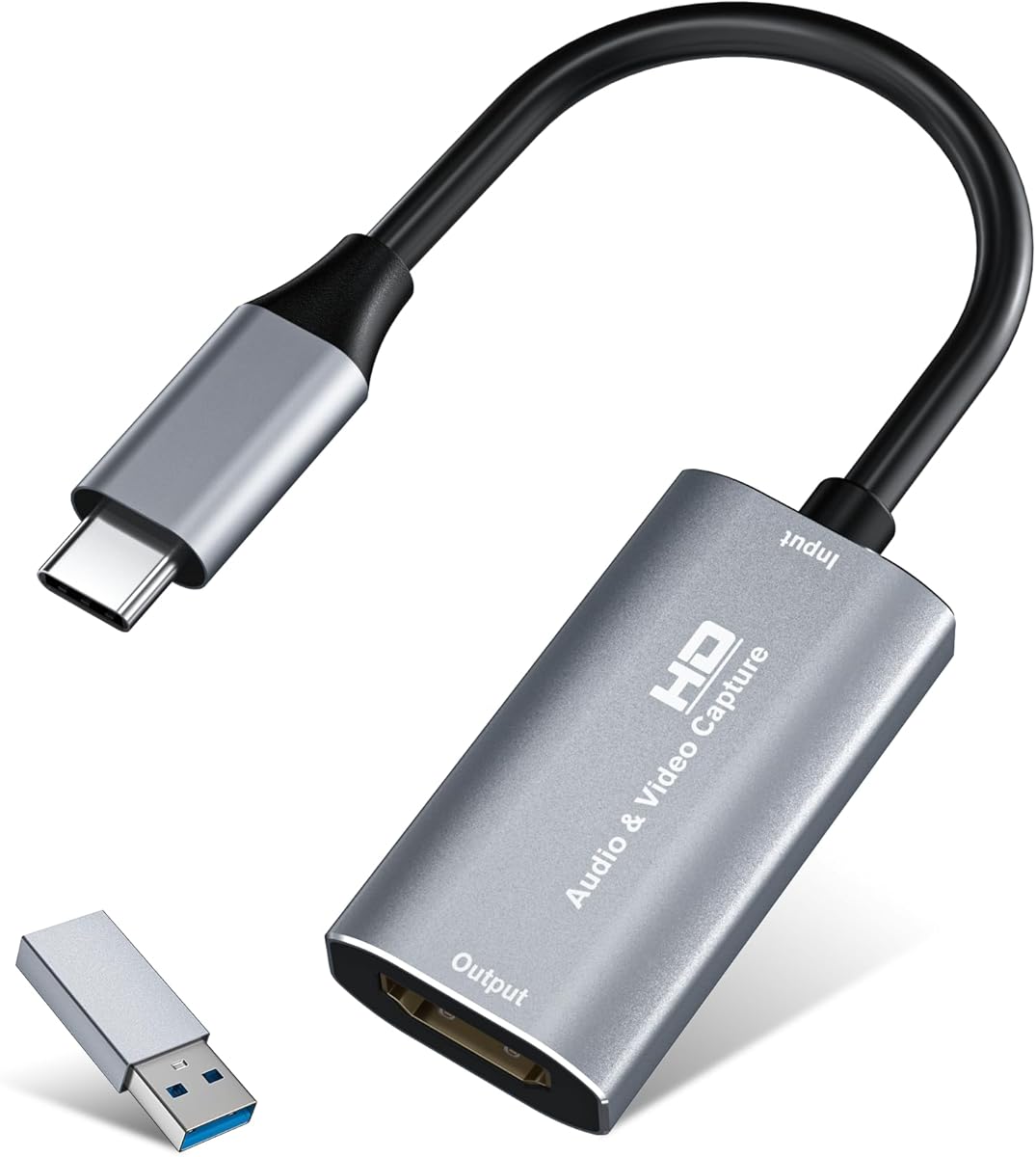


The Guermok Video Capture Card earns a 4.4 rating and stands out as the most flexible option in this guide. It accepts HDMI input up to 4K at 30Hz while offering 2K at 30Hz or 1920 by 1080 at 60Hz for capture and streaming. That combination makes it suitable for game consoles, cameras, laptops, meeting systems, and other HDMI sources without requiring a complicated conversion setup.
We may earn a commission when you buy through this link, at no additional cost to you.
Its USB 3.0 interface provides the bandwidth needed for higher capture resolutions, while the aluminum alloy housing is designed to dissipate heat during sustained use. The device supports audio and HD video transfer, real-time preview, and direct recording to a computer. Its compatibility list includes Windows, macOS, Linux, Android, Xbox One, PlayStation 3, 4, and 5, Nintendo Switch and Switch 2, cameras, TV boxes, and media software such as OBS Studio, VLC, PotPlayer, and Zoom.
The main limitation is that this is a capture device rather than a two-way HDMI adapter. It cannot send a computer's signal to a television through USB-C, and it requires capture software to function. Decoding also introduces millisecond-level latency, while supported resolution can vary between MJPEG and YUY2 formats. The included USB 3.0-to-USB-C adapter may also require trying both sides if a computer initially detects USB 2.0.
Overall, this is the strongest general recommendation for someone who wants one compact device across gaming, streaming, teaching, and meetings. Users should connect through a genuine USB 3.0 port whenever possible, check their source's HDCP status, and follow the audio setup instructions in OBS Studio. For users who need active 24/7 processing, firmware controls, or a three-year warranty, the Magewell alternative is better suited.
The combination of 4K30 input and 1080p60 output provides useful flexibility without requiring a high-end workstation. It can accept signals from recent game consoles and cameras while delivering a practical resolution for common streaming and recording software.
Its compact aluminum body, USB-A and USB-C connections, included adapter, and no-extra-power requirement make it easy to carry between a home studio, classroom, meeting room, or temporary streaming location.
We may earn a commission when you buy through this link, at no additional cost to you.
The acer Video Capture Card HDMI to USB 3.0 has a 4.3 rating and an appealing mix of resolution options and broad compatibility. It accepts HDMI input up to 4K at 30fps and can capture or stream at up to 1080p at 60fps or 2K at 60fps. That makes it a flexible choice for gaming, live production, and camera capture, provided the source and computer can handle the selected format.
We may earn a commission when you buy through this link, at no additional cost to you.
The USB 3.0 interface offers up to 5Gbps of bandwidth, and the aluminum casing is intended to dissipate heat during extended high-bandwidth sessions. A two-in-one USB-A and Type-C design allows connection to modern laptops, desktops, tablets, and consoles. The device is driver-free, light, and designed for quick deployment in mobile or temporary streaming setups.
Compatibility extends across Windows 7, 8, 8.1, and 10, macOS, Linux, Android, and iPadOS 17 or later. The listed source devices include PS4, PS5, Nintendo Switch, cameras, TV boxes, and Oculus Quest 2 or 3. OBS Studio, QuickTime Player, TikTok, Twitch, and YouTube are also named, giving users a clear software foundation for recording and broadcasting.
This is a strong pick for a streamer who wants both USB-A and USB-C flexibility without a complex installation. It is less suitable for a workflow that requires an HDMI pass-through, because the product supports only one-way HDMI-to-USB transmission. A genuine USB 3.0 port is also important for dependable performance at the higher output settings.
The advertised 2K60 capture capability gives this acer model an advantage for users seeking a sharper stream than the common 1080p30 baseline. Confirm that the source resolution, capture format, platform settings, and computer bandwidth all align before recording.
Support for Windows, macOS, Linux, Android, recent iPadOS, and major streaming applications makes the device adaptable across common production environments. Its dual-interface design further reduces the need to carry separate adapters.
We may earn a commission when you buy through this link, at no additional cost to you.
The Magewell USB Capture HDMI Gen 2 receives a 4.7 rating, the highest among the products compared, and is the clear choice for users who value dependable professional features. It supports HDMI input up to 2048 by 1080 at 60fps in 4:4:4 color and can record at up to 1080p60, providing a more defined output standard than basic webcam-style adapters.
We may earn a commission when you buy through this link, at no additional cost to you.
One of its strongest distinctions is FPGA-based video processing. Cropping, scaling, de-interlacing, color conversion, and image flipping or mirroring are handled on the device, reducing the processing burden on the host computer. The unit also provides status LEDs, thermal protection, a compact durable design, and a three-year limited warranty, all of which suit a production environment expected to operate for extended periods.
It plugs into USB 3.1 Gen 1 systems and is backward-compatible with USB 2.0. It works on Windows, macOS, Linux, and Chrome OS, although the highest performance still depends on using the appropriate USB connection. The included control utility allows users to adjust EDID, resolutions, frame rates, and firmware while also exporting logs and managing diagnostics.
This capture card is best for streamers, studios, educational institutions, and production teams that value control, diagnostics, and 24/7-oriented design. It is less compelling for a simple temporary capture where basic resolution and plug-and-play convenience are the only priorities. Its single HDMI channel also makes it less appropriate for a complex multi-source production.
FPGA-based handling of scaling, cropping, de-interlacing, and color conversion reduces the need for host-level processing. This is especially useful when stable performance matters more than the smallest possible footprint.
Thermal protection, status LEDs, durable construction, and a three-year limited warranty make the device a sensible option for regular or continuous workflows. The utility and diagnostic features also help operators identify settings or hardware problems more efficiently.
We may earn a commission when you buy through this link, at no additional cost to you.
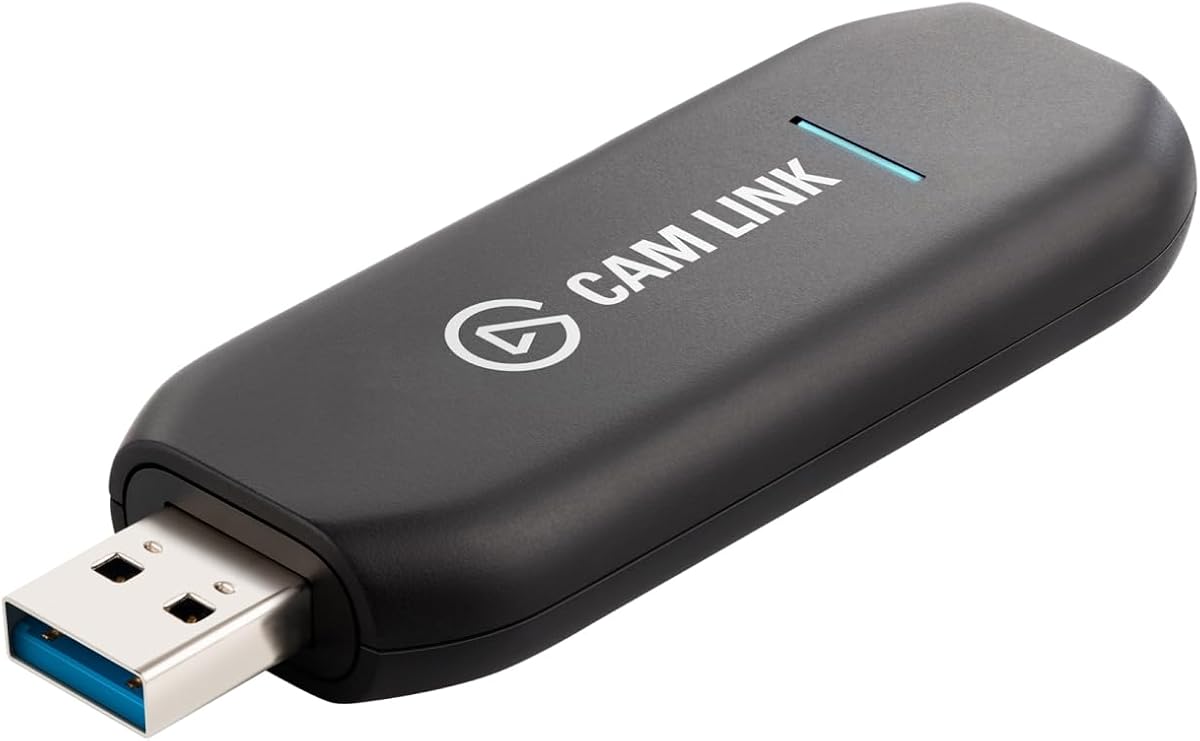
The Elgato Cam Link 4K carries a 4.6 rating and occupies a different niche from most game capture cards. It is designed to transform a DSLR, mirrorless camera, camcorder, action camera, or compatible iPhone into a high-quality computer webcam or streaming source. That focus makes it especially attractive to creators who already own capable cameras.
We may earn a commission when you buy through this link, at no additional cost to you.
The device can stream and record at 1080p60, while compatible newer Cam Link 4K models can support up to 4K60. Its ultra-low-latency design is intended to keep video and audio synchronized, and the wide range of supported camera types makes it possible to switch between a production camera and a more compact alternative without changing the overall workflow.
Its principal interface is USB-A through a USB 3.0 hardware connection, and the listed operating systems are Windows 10 or 11 and macOS. Users therefore need a suitable USB-A port, and compatibility also depends on whether the camera exposes clean HDMI output and the required video settings. Not every camera or phone can provide the resolution or timing implied by the product's headline capabilities.
This is the best fit for streamers, remote presenters, and studio creators who prioritize camera image quality over HDMI pass-through or console-specific functions. It is less suitable for users seeking a Type-C connection, broad tablet support, or a card designed to add HDMI output to a computer. Checking camera HDMI and audio support before ordering is essential.
A capable camera can become a computer webcam through a simple USB connection, helping users improve perceived image quality without changing their streaming platform. The camera remains the main image and audio source.
Support for DSLRs, mirrorless cameras, camcorders, action cameras, and compatible iPhones gives creators several ways to adapt to different shooting situations. The appropriate source settings and output resolution remain the user's responsibility.
We may earn a commission when you buy through this link, at no additional cost to you.
The UGREEN 2K at 30Hz capture card has a 4.5 rating and offers a balanced mix of output quality, portability, and device support. It accepts 4K at 30Hz HDMI input while capturing at 2K at 30Hz or 1080p at 60fps. These options let users preserve a high-resolution source signal while selecting an output that balances clarity with system and platform compatibility.
We may earn a commission when you buy through this link, at no additional cost to you.
Its USB 3.0 connection is specified for transfer speeds up to 5Gbps, which provides the bandwidth required for its higher modes. Both USB-A and USB-C interfaces broaden compatibility with smartphones, tablets, laptops, desktops, and Meta Quest 3. The aluminum alloy housing aids heat dissipation, protects against electromagnetic interference, and keeps the unit lightweight enough for a mobile bag.
The operating-system list includes Windows 11, 10, 8.1, and 7, macOS, Linux, and phones or tablets. It supports streaming and recording through OBS Studio, XSplit, PotPlayer, and QuickTime Player. The product also lists Nintendo Switch, Switch 2, PS4, PS5, Xbox Series X, and Meta Quest 3 or 2 as possible sources, subject to source settings and connection requirements.
The important caveat is that protected console content may not be captured, and the supplied information specifically notes that PS4 and PS5 work when HDCP is turned off. USB-C iPad use requires iPadOS 17 or later, and the signal path is one-way from HDMI to USB. For users who value a practical balance of portability, supported resolutions, and broad device compatibility, this UGREEN is a convincing choice.
A 4K30 input and 1080p60 or 2K30 output cover the needs of many consoles, cameras, and computers without claiming 4K recording. This makes the device a practical middle ground between basic adapters and more specialized production hardware.
The USB-A and USB-C interfaces make the same card practical with different host systems. Its compact aluminum body and driver-free operation are especially helpful for users who move between desktop and mobile production setups.
We may earn a commission when you buy through this link, at no additional cost to you.
The Rybozen Capture Card has a 4.3 rating and targets game capture, where HDMI loop-out and commentary input add practical value. It supports HDMI inputs including 4K at 30Hz or 60Hz, 1080p at 120Hz or 144Hz, and lower resolutions, while USB output can reach 2K at 30Hz. It does not support 4K at 120Hz or 144Hz output.
We may earn a commission when you buy through this link, at no additional cost to you.
Its plug-and-play design requires no driver or external power and allows the device to be identified automatically as a webcam. The HDMI loop-out lets the source continue to a local display while the computer receives the capture feed, which can be useful for gaming or monitoring. A 3.5mm TRS microphone-headset input allows a creator to add spoken commentary during gameplay.
Compatibility includes Windows and macOS, along with Twitch, YouTube, Facebook, Twitter, OBS, PotPlayer, and VLC. The source list covers PS3, PS4, Xbox One, Xbox 360, Wii U, DVDs, DSLRs, cameras, security cameras, and set-top boxes. This broad range makes the device more versatile than a narrowly game-specific capture stick.
The tradeoff is that the input and output resolutions differ substantially, so seeing a 4K source does not mean recording it in 4K. The commentary connector is also limited to a 3.5mm TRS standard microphone headset rather than every headset or microphone arrangement. Gamers who want a pass-through feed and a dedicated voice path will appreciate those features most.
HDMI loop-out allows a local screen to continue showing the source while the computer captures it. This is useful for players who want immediate visual feedback and creators who monitor a feed during recording.
The built-in 3.5mm TRS headset input provides a straightforward way to add narration. Users should confirm that their headset uses the required connector and configure the audio source correctly in their capture software.
We may earn a commission when you buy through this link, at no additional cost to you.
The Audio Express AXHDCAP 4K is the best budget entry in this guide, combining a 4.4 rating with a straightforward 1080p capture workflow. It accepts HDMI input up to 3840 by 2160 at 30Hz and outputs up to 1920 by 1080 at 30Hz with rich stereo sound. The result is a practical option for teaching, meetings, presentations, and uncomplicated game recording.
We may earn a commission when you buy through this link, at no additional cost to you.
Its major advantage is that it does not require extra drivers or an external power supply. The product is marketed for plug-and-play use with Windows, macOS, and Linux, and it supports streaming workflows involving Twitch, YouTube, OBS, Zoom, PotPlayer, and VLC. Its low-latency design is intended to support real-time preview and direct recording to the computer's disk.
The decisive limitation is the USB 2.0 interface. The supplied information explicitly states that the card cannot provide USB 3.0 recording speeds or formats above 1080p at 30fps. Users should therefore treat the advertised 4K capability as HDMI input support, not 4K USB capture. OBS or comparable software is also required for proper setup and performance.
This device makes sense for a first capture card, a classroom, a small meeting setup, or a creator who needs reliable 1080p30 video and stereo audio. It cannot add HDMI output to a computer, so buyers with that requirement should avoid it. It is also less attractive for high-frame-rate gaming than a USB 3.0 model.
A maximum 1080p30 output and included stereo audio cover many standard online meeting, teaching, and recording needs. The simple setup reduces the learning curve for first-time users.
Understanding that the card records through USB 2.0 prevents unrealistic expectations about resolution and frame rate. It is a budget capture solution, not a substitute for a full USB 3.0 workflow.
We may earn a commission when you buy through this link, at no additional cost to you.
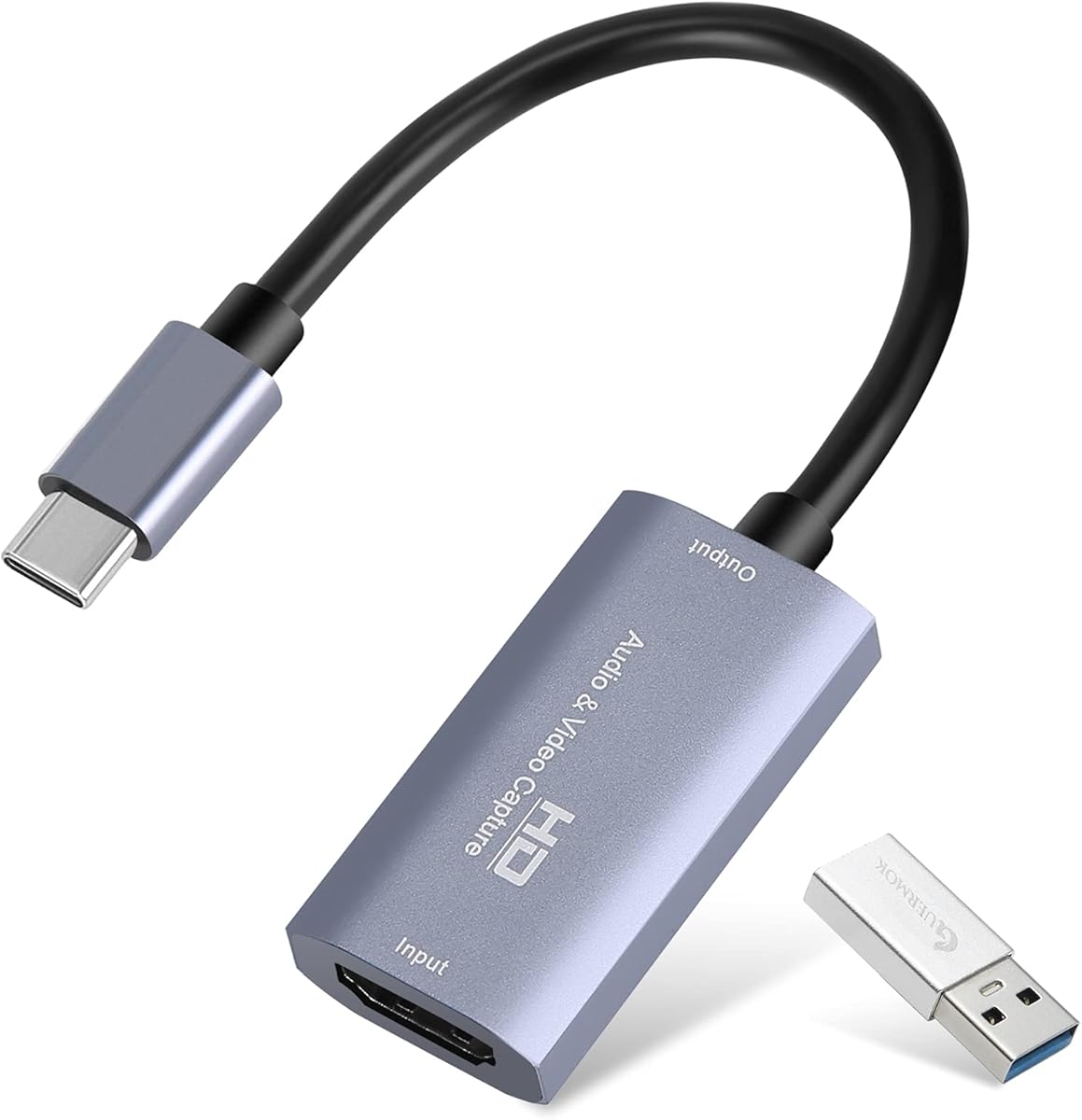
The Silver USB3.0 Capture Card has a 4.4 rating and delivers a familiar combination of 4K30 HDMI input, 2K30 recording, and 1080p60 output. It uses a true USB 3.0 interface and is presented as a compact option for gamers, streamers, mobile producers, and online meeting participants who need to capture more than one source type.
We may earn a commission when you buy through this link, at no additional cost to you.
Its aluminum alloy shell is designed for heat dissipation, while the advanced chipset and low-latency transfer are intended to maintain stable real-time video and dual-channel audio. The device is driver-free and does not need external power. Connection is possible through USB 3.0 or the included Type-C adapter, making the card convenient for laptops and other modern computers.
The compatibility list covers Windows 7, 8, 10, and 11, macOS, Linux, and Android. It is listed for PS4, PS5, Xbox, Nintendo Switch, DSLRs, cameras, TV boxes, and other HDMI-output devices. OBS, Zoom, VLC, and Twitch Studio are among the named applications, allowing the same hardware to serve gameplay, teaching, meetings, and recording tasks.
For tablet users, OTG functionality must be enabled, and the supplied guidance recommends testing the HDMI source on a monitor first. There is no documented loop-out, so users who need the source on a local display while capturing it may prefer the Rybozen or UGREEN loop-out model. Otherwise, this is a capable portable choice with good output flexibility.
The supplied USB 3.0-to-USB-C adapter simplifies connection to compatible laptops and other Type-C hosts. Support for current and older Windows versions, macOS, and Linux broadens the available setup options.
The device is designed for low-latency transfer of real-time video and dual-channel audio. Stable thermal design and a high-speed interface make it suitable for common gameplay recording and live production duties.
We may earn a commission when you buy through this link, at no additional cost to you.
The acer USB 3.0 HDMI Capture Card with Loop-Out earns a 4.5 rating and combines 4K HDMI input, 1080p60 output, local monitoring, and commentary input. Its YUY2 format is described as producing richer colors than MJPEG, which can benefit users who want less compressed-looking output for streaming or recording.
We may earn a commission when you buy through this link, at no additional cost to you.
HDMI loop-out is the device's most distinctive feature. It allows the source to remain visible on a local display while the computer receives the USB capture feed, reducing the need to depend entirely on software preview. A 3.5mm headset or microphone input adds voice directly, making the card convenient for gameplay commentary, online classes, and vlogging.
It operates without additional drivers or external power and is described as compact and lightweight for mobile use. The compatibility list includes Switch and Switch 2, PS5 and PS4, Xbox, DSLRs, PCs, macOS, Android, YouTube, Facebook, Twitter, OBS, XSplit, and VLC. That makes it adaptable to both entertainment and educational workflows.
The main limitation is that its documented USB output tops out at 1080p60, with no 2K capture mode listed. Users who need higher output resolution should compare the Guermok, acer 2K, or UGREEN models. For a creator who specifically values loop-out monitoring and a convenient microphone connection, however, this acer option is especially well aligned with the task.
HDMI loop-out keeps the source visible while capture continues, and the 3.5mm input adds a direct route for voice. Together, these features reduce friction in gaming broadcasts, lessons, and narrated recordings.
YUY2 support provides an alternative to compressed MJPEG workflows. Users should confirm that their capture software and target platform handle the selected format efficiently.
We may earn a commission when you buy through this link, at no additional cost to you.
The UGREEN 4K Loop Out has a 4.4 rating and is especially suited to users who want the source on a local screen while capturing it to a computer. It supports 4K at 30Hz in 4:4:4 input and 4K at 30Hz loop-out, while USB capture reaches 2K at 30fps or 1080p at 60fps. It does not record in 4K through USB.
We may earn a commission when you buy through this link, at no additional cost to you.
Its advanced chip is designed to manage high-bandwidth video and audio, and the local loop-out supports real-time preview and zero-latency monitoring. This makes it useful for gaming, where immediate visual response can matter, as well as for production monitoring. Users can select MJPEG for efficient compression or YUY2 when they prioritize a different balance of clarity and processing demands.
Both USB 3.0 Type-A and Type-C interfaces are present, giving users flexibility across laptops, tablets, and other compatible hosts. The aluminum casing supports durability and heat dissipation, while plug-and-play operation and the lack of an external power requirement simplify deployment. One older-system exception is that Windows 7 requires USB 3.0 drivers.
The card supports Windows, macOS, Linux, and Android, with listed sources including Nintendo Switch, Switch 2, PS4, PS5, Xbox Series X, and Meta Quest 3 or 2. OBS Studio, XSplit, PotPlayer, and other software are supported for capture workflows. It is not compatible with Fire TV Stick, and iPhone cannot serve as a data acquisition source because it lacks UVC support.
The 4K30 loop-out gives users an immediate local view of the source while the computer captures a separate USB signal. This separation is useful for responsive gaming and production monitoring.
Support for both MJPEG and YUY2 lets creators select a workflow based on compression, clarity, and software compatibility. The choice should reflect the available bandwidth and the capabilities of the recording application.
We may earn a commission when you buy through this link, at no additional cost to you.
Choosing an HDMI to USB capture device means matching input and output capabilities to your source, computer, software, and recording goals. Resolution labels alone do not tell the whole story, so connection type, audio handling, HDCP behavior, and monitoring features deserve equal attention.
The maximum HDMI input resolution describes what the device can receive, while the USB output resolution determines what your computer can actually record or broadcast. Several products accept 4K30 or even 4K60 signals but capture at 1080p30, 1080p60, or 2K30. For example, the Audio Express AXHDCAP accepts 4K30 input but outputs only 1080p30 through USB 2.0, while the Guermok supports 2K30 or 1080p60 output over USB 3.0.
Choose a card whose output resolution matches your source and platform. Higher is not automatically better, because the computer, encoding settings, connection bandwidth, and streaming service must all support the selected mode.
Frame rate matters most for fast gameplay and detailed motion. A 1080p60 output offers smoother motion than 1080p30 and is a sensible target for many console streams. Some devices accept high-refresh input, such as 1080p120 or 144Hz, but the Rybozen model does not output those rates and instead lists a 2K30 ceiling. The Acer HDMI to USB 3.0 model advertises 2K60, while other choices focus on 2K30.
Match the card to the game, camera, and encoder rather than chasing the highest number. Confirm both the source frame rate and the actual capture format, since input and output limits are separate.
USB 3.0 is important for higher output resolutions because it supplies substantially more bandwidth than USB 2.0. Most modern options include both USB-A and USB-C, while the Elgato Cam Link 4K uses USB-A and the Audio Express AXHDCAP is explicitly limited to USB 2.0. A card that advertises 4K input does not necessarily require a USB 3.0 connection for a lower output mode, but the connection must support the chosen USB output.
Use a genuine USB 3.0 port for higher modes, and verify that it is not a limited or shared connector. This avoids dropped frames, unstable transfers, or a device being detected at the wrong USB standard.
Every capture card decodes video, so some latency is inherent. The difference is that cards with HDMI loop-out can keep a local display showing the source directly while the computer handles the captured feed. This is particularly useful for gaming, where the local display is not simply a delayed software preview. The UGREEN 4K Loop Out and the Rybozen model explicitly support loop-out, while the Acer loop-out card adds the same monitoring benefit.
If immediate local feedback is important, prioritize a documented loop-out feature. Otherwise, a normal USB capture device may be sufficient for streaming, meetings, teaching, and recorded content.
A good capture workflow needs both source audio and commentary. HDMI audio support allows the device to capture game, presentation, or camera sound directly from the source. Separate microphone input is useful when narrating a game or recording a lesson. The Rybozen card accepts a 3.5mm TRS standard microphone headset, and the Acer USB 3.0 Loop-Out also provides a 3.5mm microphone connection. The Audio Express model includes stereo audio capture through its HDMI source.
Check connector type, channel requirements, and whether your capture application recognizes the audio device. For the Guermok model, OBS Studio must be restarted after audio setup or sound may not appear.
The capture hardware must be recognized by the computer, and the recording or streaming application must be able to select it as a video and audio source. OBS Studio, XSplit, QuickTime Player, PotPlayer, VLC, Zoom, and Twitch Studio appear across the listed compatibility details. Operating-system support ranges from Windows 7 on some models to modern Windows, macOS, Linux, Android, and selected iPadOS releases.
Choose a card that supports your exact system and software. For example, UGREEN's USB-C iPad workflow requires iPadOS 17 or later, while the 4K Loop Out model is not compatible with Fire TV Stick and cannot use an iPhone as a data acquisition device.
The HDMI source must support the resolution and frame rate you intend to capture. Consoles, cameras, laptops, set-top boxes, and media players may expose different settings, and protected content can block capture entirely. The UGREEN models specifically note that PS4 and PS5 require HDCP to be turned off. The Acer Loop-Out card's compatibility list includes Switch and Switch 2, but actual protected content still depends on source settings.
Confirm output resolution, refresh rate, color format, and copy-protection status before purchasing. Testing the source directly on a monitor is a practical way to verify that its audio and video are working before involving the capture card.
Portable adapters favor a compact aluminum shell, low weight, and minimal setup. Professional or continuous-use environments benefit more from thermal protection, status indicators, diagnostic utilities, and a substantial warranty. The Magewell USB Capture HDMI Gen 2 distinguishes itself with FPGA processing, thermal protection, 24/7-oriented construction, diagnostic controls, and a three-year limited warranty. Other models focus on portability and immediate plug-and-play use.
Match physical design and support features to your workload. A teacher carrying one card between rooms has different needs from a studio operator managing a continuous production feed, so reliability features should reflect actual use rather than assumptions.
Begin by confirming that your source can output the desired HDMI resolution, refresh rate, and audio format. Connect the source to the capture card with a suitable HDMI cable, then connect the card to the computer through a USB 3.0 port when its output settings require one. Use the included Type-C adapter where needed, and avoid a hub or adapter that could reduce the available bandwidth.
Install and open your capture software, such as OBS Studio, QuickTime Player, PotPlayer, VLC, Zoom, or XSplit. Add the capture card as the video source and select its audio device separately if the application does not detect sound automatically. Select a supported resolution and format, set the capture or streaming bitrate, and perform a short test recording to confirm picture, sound, and synchronization before beginning a full session.
For reliable results, disable protected content on supported sources when permitted, keep the device connected to a stable port, and allow ventilation around the housing. Roll or change cables carefully, avoid pulling on the attached connectors, and keep the unit away from moisture and excessive heat. If a device is not detected, reconnect it, confirm the USB standard, check source settings, restart the capture application, and review the manufacturer's troubleshooting guidance.
Usually not. The products in this guide are capture devices that take an HDMI source and make it available to a computer through USB. Several explicitly support only one-way HDMI-to-USB transmission. If you need to send a computer display to a television, you need an HDMI output or display adapter rather than a capture card.
No. Input and output are separate specifications. Several cards accept 4K30 or 4K60 through HDMI while recording no higher than 1080p30, 1080p60, or 2K30 through USB. Always check the USB output resolution and frame rate, especially when using a USB 2.0 adapter.
Capture sends a source into recording, streaming, or conferencing software on a computer, where it can be recorded or broadcast. Screen mirroring generally displays the source directly on another screen. A capture card may also include HDMI loop-out, which combines capture with a local display, but it still requires software to use the USB feed.
Not always. Protected content may be blocked by HDCP, producing a blank, unstable, or restricted capture. Some UGREEN products specifically state that PS4 and PS5 work when HDCP is turned off. Users should only disable protection on content they are permitted to capture and should follow platform rules.
It is highly recommended for higher output resolutions and frame rates. USB 2.0 can support basic 1080p30 workflows, which is why the Audio Express AXHDCAP is designed around that standard, but its bandwidth prevents faster or higher-resolution USB recording. Check the card's output requirements and connect it directly to a suitable USB 3.0 port.
It depends on the device and operating system. The listed UGREEN products support USB-C iPads using iPadOS 17 or later, but the UGREEN 4K Loop Out cannot use an iPhone as a data acquisition device because iPhone does not support the required UVC protocol. The Elgato Cam Link 4K can accept a compatible iPhone as a source, provided camera and device settings are appropriate.
First confirm that the source is sending audio over HDMI and that the correct capture-card audio device is selected in OBS Studio. The Guermok's instructions specifically note that OBS must be restarted after audio setup or sound may not appear. Also check source volume, operating-system permissions, and whether the application is using the expected sample rate.
HDMI loop-out passes the source signal to another display while the card separately sends a USB capture feed to the computer. This allows the local screen to show the source with little or no added delay. It is particularly useful for gaming and production monitoring, but it is not available on every capture card in this guide.
The Guermok Video Capture Card is the most versatile overall recommendation because it combines 1080p60 and 2K30 output, USB-A and USB-C connectivity, broad source compatibility, and a portable driver-free design. The Audio Express AXHDCAP 4K is the practical budget option for 1080p30 workflows, while the Magewell USB Capture HDMI Gen 2 stands apart for professional processing, diagnostics, continuous-operation features, and warranty support.
Prioritize the features your setup cannot work without: true USB 3.0 bandwidth for higher modes, HDMI loop-out for responsive monitoring, microphone input for commentary, or broad operating-system support for a traveling creator. Also check HDCP, output resolution, color format, and the exact source device before ordering. The right capture card is the one that reliably turns your planned source into a signal your software can record.
Current prices, availability, software updates, and listing details can change over time. Review the latest product page, package contents, and compatibility notes before purchasing, and verify the capture specifications against the device or console you plan to use. Those checks will help you select an HDMI to USB capture device that fits your workflow and avoids costly setup surprises.